Creating and Managing Materials
A Unity material stores a shader and the values supplied to that shader. Together they define how a surface is rendered: its textures, colour, smoothness, normal detail, emission, transparency, and other properties supported by the selected shader.
Make the material asset, select a shader that works in the project, assign its textures, and test it under the world's actual lighting.
- In the Project window, right-click a material folder and select Create > Material.
- Choose the shader, then set the material properties shown in the Inspector.
- Drag the material onto the object or assign it in the Renderer component's Materials list.
Android world shaders are not restricted to the SDK's mobile shader list, but VRChat recommends prioritizing performance, minimizing transparency, and using Mobile/VRChat/Lightmapped with baked lighting when a simple optimized world shader fits the surface.
Mesh, Material, Shader, and Texture
These parts work together but are not interchangeable.
| Part | Job |
|---|---|
| Mesh | Defines the object's geometry and material slots. |
| Material | Stores a shader reference and the values used by that shader. |
| Shader | Runs on the GPU and determines how Unity draws the surface. |
| Texture | Supplies image data such as base colour, normals, masks, or emission. |
| Renderer | Connects a mesh or skinned mesh to one or more material assets. |
Changing a texture edits image data. Changing a material edits a reusable surface definition. Changing the shader can change which material properties and texture fields exist.
1. Create the Material Asset
- Open the intended folder in the Project window.
- Right-click an empty area.
- Select Create > Material.
- Give the asset a descriptive name.
- Select it to open the Material Inspector.
A project-owned location such as Assets/World/Materials keeps new materials separate from package-owned content.
Names can describe the surface and variation:
MAT_Concrete_WallMAT_Wood_Floor_DarkMAT_Metal_Railing_BlackMAT_Sign_Emission
The prefix is optional. Consistency matters more than a particular naming system.
2. Choose a Shader
The shader menu appears near the top of the Material Inspector. After selecting a shader, the Inspector shows the properties exposed by that shader.
Before changing it, confirm:
- the shader is included in the project
- it supports the lighting and surface features the material needs
- it works with the active render pipeline
- it is appropriate for every target platform that uses this material
If an imported material is pink, its shader may be missing or incompatible with the active rendering setup. Do not convert every material at once. Test a duplicated material on a representative object first.
3. Set the Material Properties
Available properties vary by shader. Common controls include:
| Property | Typical purpose |
|---|---|
| Base Map or Albedo | Main colour texture and tint. |
| Metallic | Controls whether the surface responds like a metal in a physically based shader. |
| Smoothness | Controls the sharpness of reflected light. |
| Normal Map | Adds small surface-direction detail without changing the mesh silhouette. |
| Occlusion | Darkens areas intended to receive less indirect light. |
| Emission | Makes the material contribute a self-lit colour or texture. |
| Tiling and Offset | Repeats or shifts a texture across the mesh UVs. |
| Surface or Rendering Mode | Selects opaque, cutout, or transparent behaviour when the shader provides it. |
Texture fields only produce the intended result when the source texture uses suitable import settings. For example, a normal texture should be imported as a normal map rather than treated as an ordinary colour texture.
4. Assign the Material
You can assign a material in two common ways:
- drag it from the Project window onto a visible object in the Scene view
- select the object and place it in the Materials list of its Mesh Renderer or Skinned Mesh Renderer
The Renderer list gives the clearest view when a mesh uses multiple materials.
Each material slot corresponds to a submesh. If the wrong part changes:
- Select the object.
- Expand the Renderer component's Materials list.
- Identify which slot controls the surface.
- Assign the material to that slot.
An empty or mismatched slot can produce a missing-looking surface or apply the material to an unexpected part of the mesh.
5. Decide Whether to Share or Duplicate
Multiple renderers can reference the same material asset. Editing that asset updates every object that uses it.
| Situation | Recommended action |
|---|---|
| Repeated walls use the same finish | Share one material. |
| One wall needs a different colour | Duplicate the material, rename it, and edit the duplicate. |
| Objects differ only because of their textures | Decide whether a texture atlas or deliberate material variants better fit the scene. |
| Imported package materials are unclear | Keep them in the package folder until their prefab references are understood. |
Duplicate a material with Ctrl+D in the Project window. Check the new asset's name and assignments before editing it.
6. Use Opaque Surfaces When Possible
Opaque materials are generally easier to render than transparent surfaces. VRChat specifically warns that alpha fill rate is expensive on mobile GPUs and recommends designing Android content without transparency where possible.
Use:
- Opaque for solid surfaces
- Cutout when pixels must be either visible or discarded, such as simple foliage or fencing
- Transparent only where blended transparency is necessary
The exact labels depend on the shader. Test transparent materials from both sides, against other transparent objects, and on the target platform because sorting can differ from an opaque material.
7. Control Material Count
VRChat's Android optimization guide notes that additional materials create additional submeshes and cost draw calls. Reduce unnecessary material slots without combining unrelated world geometry so aggressively that lighting, occlusion culling, or editing becomes harder.
Review objects that use:
- several nearly identical materials
- repeated material assets with only a small tint change
- empty renderer slots
- several materials where one texture atlas would be practical
- unique transparent materials used only once
Material count is one part of rendering cost. Shader complexity, transparency, lighting, texture memory, mesh count, and visibility also matter.
8. Check GPU Instancing
VRChat recommends enabling Enable GPU Instancing on materials used by Android content. The setting appears only when the selected shader supports it.
Enabling the checkbox does not guarantee that every renderer will be instanced. Unity can instance compatible mesh-and-material combinations when the rendering conditions allow it. Test the scene and use profiling data when measuring the result.
9. Build Windows and Android Material Variants
A cross-platform world can use different material assets for different platforms when the visual or performance requirements differ.
For an Android version:
- reduce reliance on transparent effects
- check texture platform overrides
- prefer simpler shaders
- bake lighting where appropriate
- inspect the world in an Android build, not only in the Windows editor target
Keep variant names explicit, such as MAT_Glass_PC and MAT_Glass_Android. Confirm that the correct renderer assignments are active for each platform workflow.
VRChat applies stricter shader rules to Android avatars: they may only use the VRChat mobile shaders included with the SDK. This page focuses on world materials, whose Android shader policy is different.
ProBuilder Material Assignment
ProBuilder's Material Editor can assign materials to selected faces while editing blockout geometry.
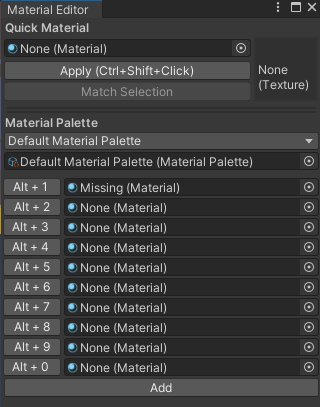
Use face-level material assignment intentionally. Every additional material used by the mesh creates another material slot and submesh.
Organize Imported Materials
Imported FBX files and asset packages can bring their own materials. Before moving or replacing them:
- Inspect the model importer's Materials tab.
- Identify whether the model uses embedded, extracted, or external material assets.
- Open the prefabs and scenes supplied with the asset.
- Confirm which material assets those objects reference.
- Make a backup before consolidating duplicates.
Keep the original package structure until those relationships are understood. Move or rename assets through Unity's Project window so their metadata moves with them.
Troubleshooting
The object is bright pink.
Select its assigned material and inspect the shader. Confirm that the shader exists and supports the active render pipeline. If the material came from another project type, duplicate it and test a compatible shader before converting other materials.
Changing one material changes several objects.
Those renderers share the same material asset. Duplicate the material in the Project window, rename the duplicate, and assign it only to the object that needs independent settings.
The texture scale or direction looks wrong.
Check the material's Tiling and Offset values and the mesh UVs. Tiling can adjust repetition, but incorrect or missing UV coordinates must be corrected on the mesh.
A normal map makes the surface look incorrect.
Select the texture asset and confirm its Texture Type is set for a normal map. Apply the importer change, then verify that it is assigned to the material's normal field and that the shader supports normal mapping.
A transparent material sorts behind another surface.
Transparent rendering has ordering limitations. Reduce overlapping transparent layers, use opaque or cutout rendering where possible, and test the result from multiple viewpoints on the target platform.
The Android version looks different from Windows.
Check the Android material assignment, shader, texture platform overrides, lighting, and transparency. Build and test the Android version after each focused change instead of judging it only from the Windows target.
Material Checklist
| Check | Confirm |
|---|---|
| Asset | The material has a clear name and project-owned location. |
| Shader | It exists, renders correctly, and suits the target platforms. |
| Textures | Each map uses the intended import type and platform settings. |
| Renderer | The material is assigned to the correct slot. |
| Sharing | Shared materials should update together; variants have separate assets. |
| Surface | Transparency is used only where required. |
| Performance | Material slots, shader complexity, and GPU instancing have been reviewed. |
| Testing | The material has been checked under world lighting on each target platform. |
Continue Learning
- Assets Folder, Importing, and Organization
- Apply a Texture to a Unity Object
- Optimize Texture Imports for VRChat Worlds
- Fix URP Materials Imported into a VRChat Project
- Create and Apply a Solid-Color Material
- Measure and Improve VRChat World Performance
Official References
- Unity 2022.3: Materials
- Unity 2022.3: Material Inspector
- Unity 2022.3: Standard Shader Material Parameters
- VRChat: Android Content Optimization
- VRChat: Android Content Limitations
Next Step
Create one material, assign its shader and textures, place it on a representative object, and inspect it under the world's real lighting before duplicating it across the scene.
