Organize Unity Editor Windows and Saved Layouts
Unity Editor windows can share a tab area, occupy a separate docked section, or float outside the main Editor window. Arrange the windows you need for a task, then save that arrangement from the Layout menu so you can restore it later.
Build a clean scene-editing workspace from Unity's Default layout.
- Open the Layout menu in the Editor toolbar and select Default.
- Keep Hierarchy on the left, Scene and Game in the centre, Inspector on the right, and Project plus Console along the bottom.
- Open Layout again, select Save Layout…, and give the layout a descriptive name.
Keep the Console accessible while working with scripts, packages, and SDK tools. Unity records errors, warnings, and other messages there, and its controls can filter the message types you need to inspect.
Core Editor Windows
Unity's Default layout includes the primary windows used during scene editing. Additional Editor windows are available from the Window menu.
| Window | What it shows | Common use |
|---|---|---|
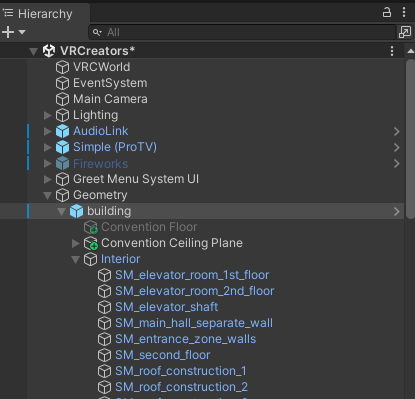
| Hierarchy | Every GameObject in the current Scene | Select and organize scene objects |
| Scene | The editable view of the current Scene | Place, rotate, scale, and inspect objects |
| Game | The view rendered by the active camera while the project runs | Check play-mode output |
| Inspector | Properties of the selected GameObject or asset | Edit components, materials, and asset settings |
| Project | Assets, scenes, scripts, and other files in the project | Find and organize project content |
| Console | Messages, warnings, and errors produced by Unity | Inspect problems and diagnostic output |
Dock a Window or Add It as a Tab
Drag an Editor window by its tab. Unity highlights the places where you can drop it:
- Drop the tab in another window's Tab Area to place both windows in the same group.
- Drop it in a Dock Zone along an edge to create a separate docked section.
- Move it away from the main Editor and leave it as a floating Editor window.
A floating Editor window can contain several docked windows and tabs of its own. This is useful when a second screen is available, but it is not required for a practical layout.
Right-click a tab to open its context menu. Unity provides options including Maximize and Close Tab; middle-clicking an open tab also closes it.
Build a Scene-Editing Layout
Use a large Scene view with the object and asset windows arranged around it:
- Dock Hierarchy on the left.
- Group Scene and Game as tabs in the centre.
- Dock Inspector on the right.
- Dock Project across the bottom.
- Place Console beside Project as a tab, or give it a separate bottom section if you need to read several messages at once.
This arrangement keeps the selected scene object, its Inspector properties, project assets, and Console output within the same workspace.
Build a Debugging Layout
When you are investigating an error, give the Console enough room to display its message list and details:
- Open Window → General → Console if the Console is closed.
- Dock it across the lower part of the Editor.
- Keep Inspector and Project visible so you can inspect referenced objects and assets.
- Use the Console toolbar's message-type controls to show or hide messages, warnings, and errors.
Unity's Console documentation explains its search, filtering, collapse, clear, and stack-trace controls in detail.
Save and Restore a Layout
After arranging the Editor windows:
- Open the Layout dropdown on the Editor toolbar.
- Select Save Layout….
- Enter a name such as
Scene EditingorDebugging. - Select the saved name from the same dropdown whenever you want to restore it.
Save separate layouts only when the window arrangement is materially different. A small set of clearly named layouts is easier to recognize than many minor variations.
Return to the Default Layout
If a window is missing or the workspace has become difficult to restore manually, open the Layout dropdown and select Default. Unity Learn specifically recommends returning to Default when windows are lost or the layout becomes problematic.
If Unity displays a Failed to load window layout dialog or repeatedly fails while restoring a layout, use the window-layout error guide.
I cannot find a window used in a guide.
Check Unity's Window menu. The main Editor windows are grouped under Window → General; installed packages can add their own menu items and windows.
A tab joined the wrong group.
Drag the tab again. Drop it in the tab area of the intended group, or move it over a dock zone to create a separate section.
Several tabs no longer fit across the window.
Unity displays navigation arrows when a tab area contains more tabs than it can show. Use the arrows to move through the hidden tabs, enlarge the group, or close windows you do not need.
A floating window is missing.
Return to the Default layout from the Layout dropdown, reopen the required window, and save a new layout after placing it where you want it.
Unity cannot load a saved layout.
Use the Default layout first. If the error returns, follow the dedicated Failed to load window layout guide for the next checks.
Official References
- Unity Manual 2022.3: Customizing your workspace
- Unity Manual 2022.3: Console Window
- Unity Learn 2022.3: Exploring the Editor Layout
Continue Learning
- Unity Editor Layout and Windows
- Navigate the Scene View and Camera Controls
- Unity Shortcuts for VRChat Creators
- Inspector Basics and Workflows
- Fix Unity's Failed to Load Window Layout Error
