Import 3D Assets for VRChat Worlds
Unity imports a model file into a model asset with configurable mesh, rig, animation, and material settings. Inspect those settings before placing many copies of the asset in a VRChat world.
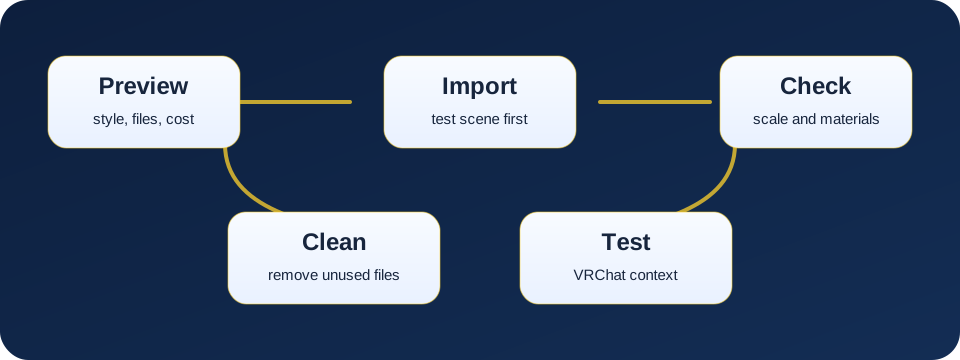
Import one model, verify its Model Importer settings, and test one prefab in a local world build.
- Prefer an exported FBX and keep its textures beside the project import.
- Check scale, mesh settings, materials, and colliders in the Inspector.
- Test the asset on every platform variant the world supports.
VRChat projects use Unity's Built-in Render Pipeline. An asset made only for URP or HDRP needs compatible materials and shaders before it will render correctly.
 1
2
3
4
5
1
2
3
4
5
Choose a Model File
Unity 2022.3 supports standard model formats including:
.fbx.dae.dxf.obj
Unity uses FBX internally in much of its model-import pipeline and recommends exported FBX files for production when possible. Proprietary files such as .blend, .ma, and .mb require the corresponding authoring application on the computer during import.
An exported FBX avoids that workstation dependency and makes the conversion step explicit. VRChat also advises exporting Blender models to FBX instead of using .blend files directly.
Model File or Asset Package?
Use the correct import path:
| Source | Import method |
|---|---|
.fbx, .obj, .dae, or .dxf |
Copy or drag into a folder under Assets |
| Asset Store package | Window > Package Manager > My Assets |
Custom .unitypackage |
Assets > Import Package > Custom Package |
| VPM package | Creator Companion Manage Project |
| UPM package | Window > Package Manager |
For package installation and removal, see Install and Remove Unity Add-ons Safely.
Keep the Import Contained
Create a dedicated folder before importing:
Assets/
  ThirdParty/
    AssetName/
      Model/
      Materials/
      Textures/
      Prefabs/
Do not reorganize a complex imported package until you know which prefabs, materials, animations, and scripts reference its files. Move assets inside Unity so their .meta files and references remain paired.
Open the Model Importer
Select the model file in the Project window. Its Inspector provides these tabs:
- Model for scale, meshes, geometry, normals, and imported scene objects;
- Rig for animation type and avatar configuration;
- Animation for imported clips;
- Materials for material creation, search, remapping, and extraction.
Change a setting, then select Apply. Use Revert to discard unapplied changes.
Check Scene and Scale Settings
The Model tab controls how Unity interprets the source scene.
Review:
- Scale Factor, which applies a global scale during import;
- imported cameras and lights, if present;
- hierarchy preservation;
- visibility and camera data;
- unit conversion behavior.
Place the model beside known scene geometry and enter a VRChat local test. Doorways, steps, handrails, furniture, and interactable props should be checked from the player's view rather than only from Unity's Scene camera.
Fix systematic unit or export problems in the source file or importer. Avoid compensating with a different Transform scale on every placed copy.
Check Mesh Settings
Mesh Compression
Mesh Compression reduces model data size by lowering mesh precision. Unity provides Off, Low, Medium, and High levels.
Test the highest level that does not visibly change the model. Watch silhouettes, thin pieces, UV seams, and collision alignment after applying compression.
Read/Write Enabled
When Read/Write Enabled is on, Unity retains a CPU-accessible copy of mesh data after sending it to the GPU. Unity states that it should remain disabled in most cases to reduce runtime memory use.
Enable it only when a documented runtime system needs readable mesh data, such as code that accesses or modifies the mesh.
Optimize Mesh
Unity's default Optimize Mesh setting allows vertex and polygon reordering for better GPU use. Leave it enabled unless the asset or a documented workflow requires the original ordering.
Generate Colliders
Generate Colliders automatically adds Mesh Colliders to imported meshes. Unity describes it as useful for environment geometry but advises against it for moving geometry.
Do not enable it across an entire pack without inspection. Decorative meshes, small details, vegetation, and unreachable geometry may not need colliders.
Normals, Tangents, and UVs
In the Model tab, verify how Unity handles:
- normals;
- tangents;
- smoothing;
- UV channels;
- lightmap UV generation.
Import normals when the source model contains the intended shading. Recalculate only when the imported result or the production workflow requires it.
Enable lightmap UV generation when the asset needs a valid secondary UV channel for baked lighting and the source does not already supply one. Inspect the generated result before relying on it across a large environment.
Rig and Animation Tabs
For static world geometry, animation import is usually unnecessary.
When the file contains no required rig or clips:
- set the Rig Animation Type appropriately for a static asset;
- disable animation import;
- avoid importing unused cameras, lights, and animation data.
For an animated prop, confirm the intended animation clips, root transform behavior, loop settings, and required Animator setup before using it in the world.
Materials and Textures
The Materials tab controls whether Unity creates materials, embeds them as model sub-assets, searches for existing materials, or remaps material slots.
After import:
- Select each created material.
- Confirm its shader exists and supports the Built-in Render Pipeline.
- Confirm albedo, normal, emission, metallic, and other maps are assigned to the intended properties.
- Inspect texture import size, compression, mipmaps, and platform overrides.
- Check how many material slots the Renderer uses.
Pink materials indicate a missing or unsupported shader. Do not convert a VRChat project to URP or HDRP to repair them. Use Fix URP Materials Imported into a VRChat Project.
Build a Prefab
Do not repeatedly drag the raw model asset into scenes and configure every copy separately.
Create one configured scene instance:
- Add the model to a test scene.
- Set its Transform.
- Add or replace colliders.
- Assign the final materials.
- Add VRChat or Udon components only when required.
- Drag the configured root GameObject into the Project window to create a prefab.
Use prefab instances throughout the world so later corrections can be applied consistently.
PC and Android Variants
An asset that works on PC may still need a separate Android setup.
VRChat's Android optimization documentation emphasizes:
- lower triangle and mesh counts;
- fewer material slots and draw calls;
- smaller compressed textures;
- careful use of custom shaders and transparency;
- baked lighting;
- retaining separate objects where occlusion culling needs them.
Do not merge an entire environment into one mesh merely to reduce object count. VRChat notes that overly aggressive merging can prevent Unity from culling large hidden sections independently.
Use separate PC and Android materials, meshes, prefabs, or scenes where the platform requirements differ.
Inspect the Asset in Context
Test one configured prefab before duplicating it:
- view it at expected minimum and maximum distance;
- test its collider from desktop and VR movement;
- inspect material behavior under the world's baked lighting;
- check shadows and transparency;
- watch the Game-view Stats;
- capture the scene with the Unity Profiler when performance is in question;
- run the SDK Builder validation;
- build the relevant platform and test it in VRChat.
Measure the placed result. A source model's advertised polygon count does not describe its materials, texture memory, lighting, animation, scripts, or behavior when repeated.
Troubleshooting
The model imports at the wrong scale.
Check the source application's units and Unity's Scale Factor or unit conversion settings. Correct the shared importer or source export instead of assigning a different Transform scale to every instance.
The materials are pink after import.
The assigned shader is missing or incompatible. Confirm the asset's required pipeline and remap its materials to shaders supported by the VRChat Built-in Render Pipeline project.
The imported model uses more memory than expected.
Inspect Read/Write Enabled, mesh compression, textures, animation clips, and duplicate assets. Disable Read/Write unless a documented runtime feature requires CPU access to the mesh.
Players collide with invisible detail.
Inspect every generated or supplied collider. Remove colliders from decorative geometry and replace detailed Mesh Colliders with deliberate collision shapes where appropriate.
The Android version performs poorly.
Review its mesh count, triangles, material slots, texture sizes, shader complexity, transparency, and lighting. Create an Android-specific variant instead of forcing the PC asset to remain visually identical.
Official References
- Unity 2022.3: Model File Formats
- Unity 2022.3: Importing a Model
- Unity 2022.3: Model Importer—Model Tab
- Unity 2022.3: Model Importer—Materials Tab
- VRChat Android Content Optimization
- VRChat SDK Setup
