ClientSim World Testing For VRChat Creators
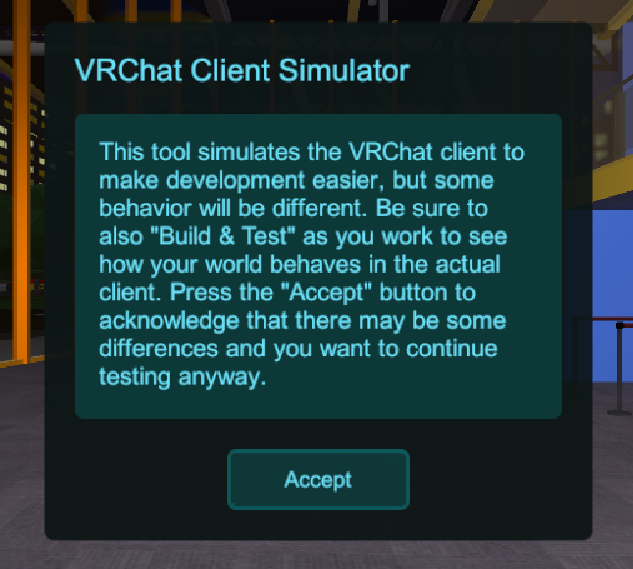
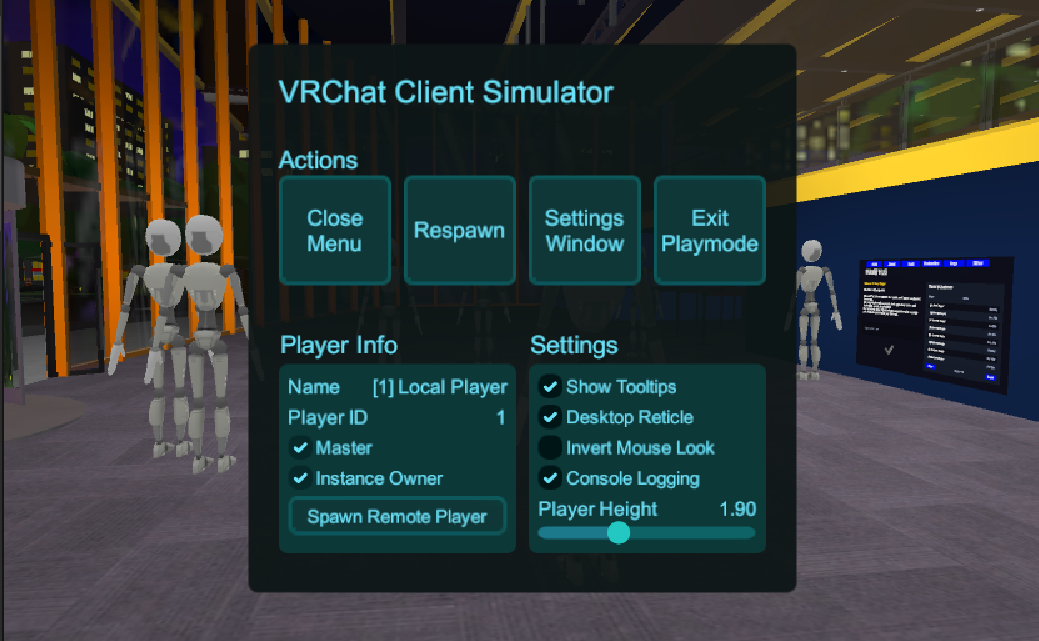
ClientSim is a fast way to test basic VRChat world behavior inside Unity before you upload a build. It is part of the VRChat Worlds SDK and simulates enough client behavior to make early iteration much faster.
Use it when you are building interactions, checking Udon behavior, testing a simple prefab, or trying to catch obvious issues before the slower upload loop.
Use ClientSim as the first test pass, not the final proof that the world is ready.
- Open the world scene through the correct Creator Companion project.
- Press Play in Unity and test the core interaction in the Game view.
- Upload privately and confirm the same behavior in the VRChat client.
ClientSim can speed up development, but it cannot simulate every VRChat feature. Treat it as a local QA layer before the private-upload and multiplayer test pass.
What ClientSim Is Good For
Use ClientSim for fast checks like:
- walking around a world in Unity Play Mode
- pressing Interact buttons
- grabbing pickups
- testing UI and stations
- checking simple Udon variable changes
- spotting broken references before upload
- removing EditorOnly objects when entering Play Mode
- inspecting PlayerData and PlayerObjects during debugging
This is especially useful while building small systems. A button, toggle, door, teleporter, menu, pickup, or simple prefab can usually get its first sanity check inside Unity.
What ClientSim Does Not Prove
ClientSim is not a complete replacement for VRChat.
Do not use it as the only test for:
- real multiplayer networking
- late joiner behavior
- ownership edge cases
- Quest, Android, or mobile performance
- in-client comfort and camera feel
- real player behavior in a crowded instance
- platform-specific upload or validation behavior
If a system touches networking, persistence, movement comfort, audio, video players, or platform limits, ClientSim is only the first pass.
A Practical ClientSim Checklist
Before uploading a new private build, run through this list:
- Press Play and confirm the player spawns in a usable place.
- Walk the main route and check scale.
- Interact with every required button, trigger, pickup, station, and UI control.
- Watch the Unity Console for red errors.
- Inspect important Udon variables when debugging logic.
- Check PlayerData or PlayerObject behavior if the system saves state.
- Stop Play Mode, fix obvious issues, then test again.
Once this passes, upload privately and test the same system in VRChat.
ClientSim And Networking
ClientSim is useful for testing local logic, but synced behavior still needs caution.
Use this rule of thumb:
| System type | ClientSim usefulness | Final proof |
|---|---|---|
| Local button or UI | Good first test | Private upload |
| Pickup interaction | Good first test | Private upload with realistic use |
| Synced toggle or score | Basic logic only | Two-client or multiplayer test |
| Ownership transfer | Limited | Real VRChat client test |
| Persistence | Useful for inspection | Return visit and saved-data test |
If the world must behave correctly for late joiners, instance owners, or multiple players at once, plan a real multiplayer test.
Common Problems
Help! It works in ClientSim but not in VRChat.
Check SDK validation, upload target, platform differences, networking ownership, missing references, and whether the behavior depends on a feature ClientSim does not fully simulate.
Help! ClientSim does not start correctly.
Confirm the project opens through Creator Companion, the Worlds SDK is installed, the scene has the expected VRChat setup, and the Unity Console is not blocked by compile errors.
Help! My synced object behaves strangely.
Move from ClientSim to a private upload and test with multiple clients. Synced variables, ownership, and late joiners need real VRChat networking checks.
Official References
Related community tools
- CyanEmu - older VRChat client emulator for Unity that still appears in community workflows and comparisons.
- UdonExplorer - useful scene-inspection helper when you need to debug many UdonBehaviours while iterating locally.
- Udon Toolkit - common community toolkit that often shows up in the same early-testing workflows.
Claims about ClientSim limits are intentionally conservative: use ClientSim for editor-side checks, then verify networking, platform behavior, persistence, and final feel in the VRChat client.
Related Reading
- VRChat World Building
- How To Upload A World In VRChat
- Using Example Central In The VRChat SDK
- Udon Networking Decision Guide
- VRChat Persistence, PlayerData, And PlayerObjects
- World Upload Troubleshooting Checklist
- Add Your First Interactive Button
- VRChat ClientSim
Final Advice
Use ClientSim early and often. It shortens the feedback loop while you are building, but the last decision should still come from a private upload, real VRChat client testing, and the platform targets your players will actually use.
Use ClientSim For Fast Checks, Then Verify In VRChat
ClientSim is best as an early testing layer. It helps you catch simple interaction and Udon problems quickly, but it does not replace final in-client testing.
Suggested Order
- Run Play Mode before upload Use ClientSim to test core movement, pickups, Interact actions, UI, stations, and obvious Udon errors inside Unity.
- Inspect the state you care about Use ClientSim windows to inspect Udon variables, PlayerData, and PlayerObjects while you iterate.
- Finish with real client testing Upload privately and test multiplayer, networking, platform behavior, and comfort in VRChat before publishing.
Related VRCreators Guides
- World Upload Troubleshooting Checklist Use this when the scene behaves in Unity but fails during build or publish.
- Udon Networking Decision Guide Use this before deciding what should be local, synced, event-based, or persistent.
- VRChat Persistence, PlayerData, And PlayerObjects Use this when testing saved data or per-player state.
Common Questions
Can ClientSim replace uploading a private test build?
No. ClientSim is useful for early Unity testing, but final behavior still needs a private VRChat upload and in-client testing.
What should I test first in ClientSim?
Start with player movement, buttons, pickups, UI, stations, Udon variable changes, and any obvious Console errors.
