World Upload Troubleshooting Checklist
If your VRChat world does not build or publish, troubleshoot in a fixed order. Change one thing at a time so you can tell whether the problem is project setup, scene validation, account status, platform targeting, or the upload step.
This checklist is designed to be followed from top to bottom. Do not skip straight to advanced fixes unless the earlier checks are already confirmed.
Troubleshoot in order so you can identify whether the project, scene, SDK login, or upload step is failing.
- Restart Unity and VCC, then reopen the project from Creator Companion.
- Fix Unity version, SDK package, and Console errors before changing scene content.
- Use a clean test scene to confirm whether the issue is project-wide or scene-specific.
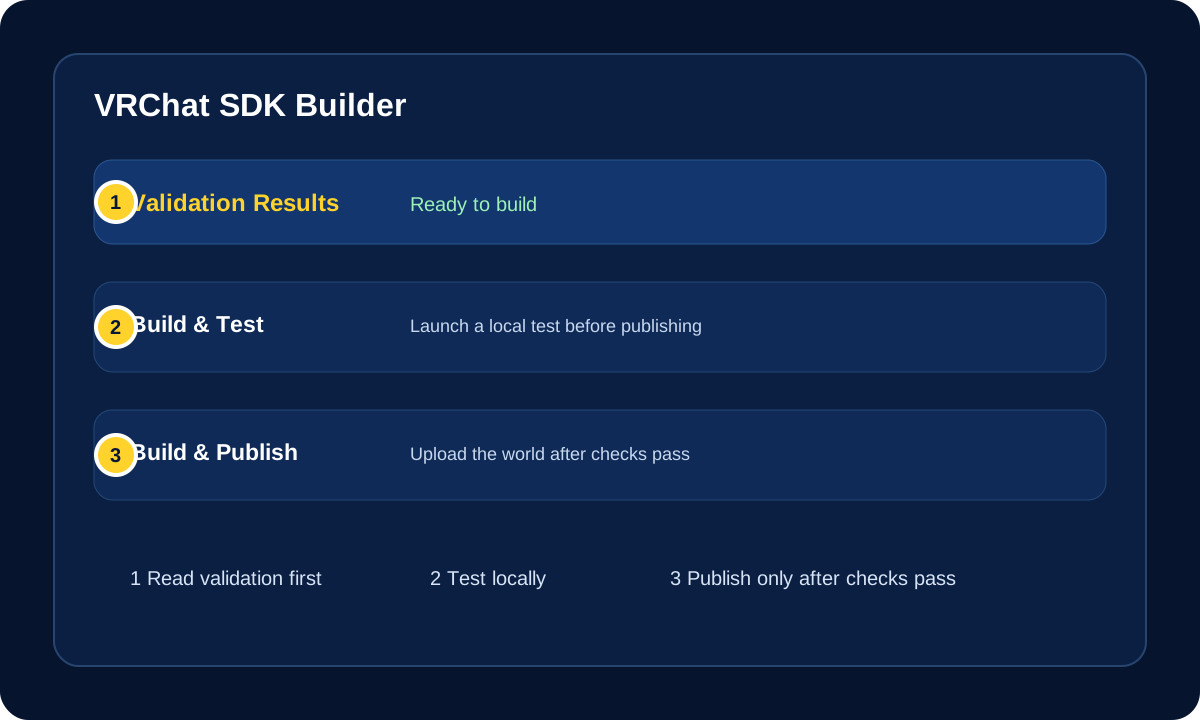
Many upload failures are validation failures. Read the SDK Builder message and Console errors before assuming VRChat upload servers are the problem.
Playlist Companion
This video is a strong match for this checklist because it walks through the same publish handoff and platform checks that usually fail right at the end of a world build.
Uploading to PC & Quest - Create Your First VRChat World
Quick follow-up reference
- Easy Quest Switch, a MUST for quest world creators - Udon / VRChat SDK3.0
- Basic World Creation - older community first-world outline that still helps explain the descriptor and upload basics.
First Rule: Fix One Class of Problem at a Time
When an upload fails, ask:
- Is Unity itself broken?
- Is the SDK setup broken?
- Is the scene configuration broken?
- Is the upload blocked by account or network issues?
That order matters. There is no point checking world thumbnails or metadata if the project cannot even compile.
Fast Symptom Map
| Symptom | Check First |
|---|---|
| VRChat SDK menu is missing | SDK package install, Creator Companion project state, and red Console errors. |
| Builder tab shows descriptor warnings | VRC Scene Descriptor, VRCWorld, and spawn references. |
| Upload button is disabled | SDK login, Builder validation, account upload permission, and selected build target. |
| Build & Test fails | Unity Console errors, packages, shaders, missing scripts, and scene references. |
| Build works but upload fails | SDK session, account status, internet/network, VRChat service status, and package size. |
| PC upload works but Quest/Android does not | Android module, build target, shaders, filesize, components, and Quest compatibility. |
Step 1: Restart the Session Cleanly
Before doing anything complicated:
- Save anything important.
- Close Unity.
- Close VRChat Creator Companion.
- Reopen VCC.
- Open the project again through VCC.
This solves more issues than people expect, especially after package installs, script changes, or SDK updates.
Step 2: Confirm You Are Using the Correct Unity Version
This is one of the most common causes of VRChat project problems.
Check the following:
- The project is opened in the Unity version expected by the current Worlds SDK
- The Unity version was installed through the VCC workflow or verified against VRChat requirements
- You did not accidentally upgrade the project to a newer unsupported editor version
If you are unsure whether the Unity version is correct, treat that as a likely problem until confirmed otherwise.
Step 3: Confirm the SDK Was Added Through VCC
If the SDK or project packages were mixed from old and new workflows, uploads can fail in unpredictable ways.
Check:
- The project exists in VCC
- The Worlds SDK package is installed there
- You did not manually import an old SDK
.unitypackage
If a project has a history of manual SDK imports, it may be cleaner to create a fresh test project and compare behavior.
Step 4: Read the Console Before Pressing Build Again
Do not keep trying Build & Publish if the Console already has red errors.
Fix red errors in this order:
- C# compile errors
- Missing scripts
- Package dependency problems
- Shader or platform-specific errors
Red compile errors are the highest priority because they often stop the entire build process.
If the message is unclear, use How to Read Unity Console Errors to identify its code, source path, line reference, and triggering action before rebuilding.
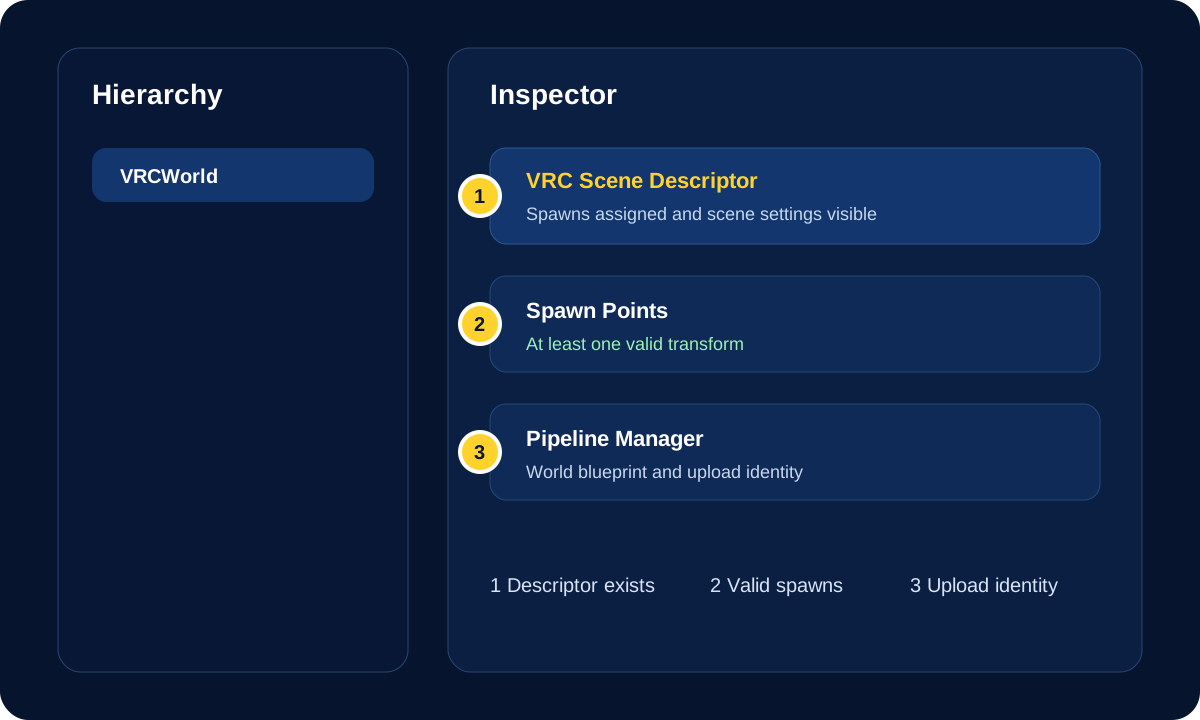
Step 5: Confirm the Scene Has Required VRChat Components
For a world upload to work, the scene needs basic VRChat setup.
Check:
- A
VRC Scene Descriptorexists - At least one valid spawn point is assigned
- Spawn positions are placed correctly above the floor
- Any required references in the descriptor are not missing
Common beginner mistakes:
- The descriptor was deleted by accident
- Spawn transforms exist but were never assigned
- The scene being uploaded is not the scene that was actually configured
Step 6: Make Sure You Are Signed In to the SDK
Sometimes the project is fine, but the upload button is unavailable because the SDK session is not valid.
Check:
- You are signed in through the VRChat SDK panel
- The SDK is not showing an authentication problem
- Your session did not silently expire
- Your VRChat account is eligible to upload worlds
If needed:
- Sign out in the SDK
- Sign back in
- Reopen the Builder tab
Step 7: Test the Scene With Build & Test
If the project builds but the published world fails or behaves strangely, use Build & Test first.
This helps you separate:
- Build problems
- Scene problems
- Live upload problems
If Build & Test already fails, the issue is probably inside the project or scene rather than the upload server step.
Community troubleshooting helpers
- CyanEmu - older Unity-side emulator reference that can still help isolate project-side issues from live upload issues.
- ClientSim World Testing - internal VRCreators guide for the VRChat-supported local testing route.
- Quest Compatibility Checklist - useful when the failure only appears on Android or Quest targets.
Common Failure Types and What They Usually Mean
Help! The Builder failed or stopped abruptly.
This usually points to a compile problem, package issue, import problem, or Unity build failure. Clear the Console, save the scene, reimport recently changed assets, close heavy background apps, and retry once the project is stable.
Help! The SDK says my scene is missing a VRC Scene Descriptor.
Add a VRC Scene Descriptor, reassign spawn points, save the scene, and run Builder validation again. Without this component, the SDK cannot treat the scene as a VRChat world.
Help! The upload button is disabled.
Check SDK login, remaining validation errors, and account upload permissions first. A disabled upload button is usually a blocked workflow state rather than a random UI issue.
Help! The build works but the world behaves incorrectly.
The upload probably is not the problem. Check spawn placement, missing materials, broken prefabs, missing references, audio settings, and interaction scripts inside the scene.
Help! The scene is very large or Unity runs out of memory.
Close other heavy software, reduce large texture sizes, remove unnecessary high-resolution content, and test a simplified copy of the scene to isolate the issue.
Step 8: Check for Network or Platform Problems
If the project validates correctly but upload still fails, the problem may be outside the scene itself.
Check:
- Your internet connection is stable
- You are not being interrupted by firewall or network issues
- VRChat services are not having a platform-side problem
- The selected platform target matches the upload you are trying to make
- Android/Quest support has the required Unity module and compatible content
If upload errors suddenly begin without any project changes, that is often a clue that the issue may not be your scene.
Step 9: Check Account, Metadata, and Content State
If the build succeeds but publish still does not complete, check the parts that are not just Unity compilation:
- The world name, description, image, capacity, and content settings are valid.
- Your account can upload worlds. Newer accounts may be able to build and test locally before they can publish.
- You are not trying to publish content that violates VRChat rules or content restrictions.
- The world size and platform target are acceptable for the platform you selected.
- The SDK Content Manager does not already show a confusing duplicate or stale entry.
Step 10: Use an Isolation Method
If you still cannot find the problem, isolate it.
A good recovery method is:
- Duplicate the scene
- Keep one untouched backup
- Remove non-essential systems from the duplicate
- Test again
- Add systems back one group at a time
This helps you identify whether the failure is coming from:
- A specific prefab
- A script
- A package
- A shader setup
- A particular scene area
For beginners, this is much faster than making random edits all over the project.
Quick Comparison Checklist
When something fails, compare the broken scene against a known-good simple world:
- Do both scenes have a descriptor?
- Do both scenes have valid spawns?
- Does the broken scene have more Console errors?
- Did the broken scene recently receive package or prefab changes?
- Does the simple test scene build successfully?
If a simple clean scene builds but your main scene fails, the problem is inside your world setup, not the whole project environment.
Prevention Tips
To reduce future upload failures:
- Keep a known-good backup before big changes
- Use source control or regular manual backups
- Test new systems in a separate scene first
- Keep project structure organized
- Update packages carefully instead of casually
When to Stop and Rebuild Cleanly
Sometimes a project becomes messy enough that repairing it takes longer than rebuilding the setup cleanly.
Consider a clean project if:
- The project has been through multiple failed SDK workflows
- Old manual SDK imports were mixed with VCC packages
- Package errors keep returning after fixes
- A fresh VCC test project behaves correctly while the old one does not
That does not always mean you lost the work. It may just mean migrating the scene and content into a cleaner project is the smarter path.
Official References
- VRChat Worlds
- Creating Your First World
- Current Unity Version
- World Components
- VRC Scene Descriptor
- Allowlisted World Components
- World Creation, Optimization, and Community Labs Tips
