VRChat Creator Companion Troubleshooting Guide
When VRChat Creator Companion installs but behaves strangely, fails to detect Unity, or opens a broken project, first separate VCC problems from Unity Hub, package, SDK, and scene problems.
The safest troubleshooting pattern is to identify which layer is broken before changing project files. A VCC app issue, Unity Hub issue, package issue, and scene issue can look similar when you are already frustrated.
Troubleshoot from the launcher outward: VCC, Unity install, project path, packages, then scene or SDK state.
- Confirm the supported Unity version is installed and licensed.
- Keep projects in short local paths before fixing package issues.
- Compare against a fresh VCC project before rebuilding a complex project.
Creator Companion manages packages and project metadata for VRChat. Mixing legacy SDK imports into a VCC project can make troubleshooting much harder.
Playlist Companion
This walkthrough fits the page well because it shows the intended VCC project-creation path before you drop into the troubleshooting branches below.
Create Avatars & World Projects - VRChat Creator Companion
Watch on YouTube: Create Avatars & World Projects - VRChat Creator Companion
Quick Decision
| Problem | Best first check |
|---|---|
| VCC opens to a blank white screen | Check WebView2 and try the browser workaround first. |
| VCC cannot find Unity | Confirm the supported Unity version is installed, then point VCC to the Unity editor path in Settings. |
| Unity installs but will not launch | Open Unity Hub manually and make sure your Unity license is activated. |
| A VCC project has missing packages or backup problems | Shorten the project path before doing anything more advanced. |
| The VRChat SDK menu or control panel is missing in Unity | Check for the supported Unity version and red compile errors in the Console. |
| VCC itself fails to launch correctly after config changes | Reset settings.json and let VCC recreate it. |
Triage Order
Work through the problem from the outside in:
| Layer | What to check |
|---|---|
| VCC app | blank screen, app launch, WebView2, settings reset |
| Unity install | supported editor version, Unity Hub license, editor path |
| Project path | short local path, no fragile sync or deep nesting |
| Packages | Avatar or Worlds SDK installed through VCC, no legacy SDK imports |
| Unity project | Console errors, missing SDK menu, scene state |
| SDK Builder | validation messages, upload/build-specific errors |
If a fresh VCC project works on the same machine, the problem is probably in the original project. If a fresh VCC project fails too, the issue is probably VCC, Unity, system config, or network/package access.
Before You Troubleshoot
- Keep using the supported VRChat Unity version:
2022.3.22f1. - Do not import legacy
VRCSDK3...unitypackagefiles into a VCC-managed project. - Make a backup before trying fixes that touch project config, packages, or migration steps.
- Keep projects in short local paths such as
C:\VRCProjects\MyWorldinstead of deeply nested folders. - Close Unity before changing VCC package setup or resetting project-level configuration.
- Write down the first red Console error instead of trying five fixes from memory.
1. VCC Opens To A Blank White Screen
This usually points to a WebView2 problem, not a broken VRChat project.
Try this in order:
- Close the Creator Companion.
- Reinstall WebView2.
- If Microsoft Edge was removed or damaged on the system, repair or reinstall Edge too.
- Launch VCC again.
If the app still shows a white screen, use the official browser workaround:
- Launch VCC and leave the white window open.
- Open
http://localhost:5476/in a working browser. - Use that browser tab as the UI while the VCC app continues handling the backend work.
2. VCC Cannot Find Unity
VCC expects VRChat's supported Unity editor, not just any Unity install you already have.
Check these points:
- Confirm Unity Hub is installed.
- Confirm Unity
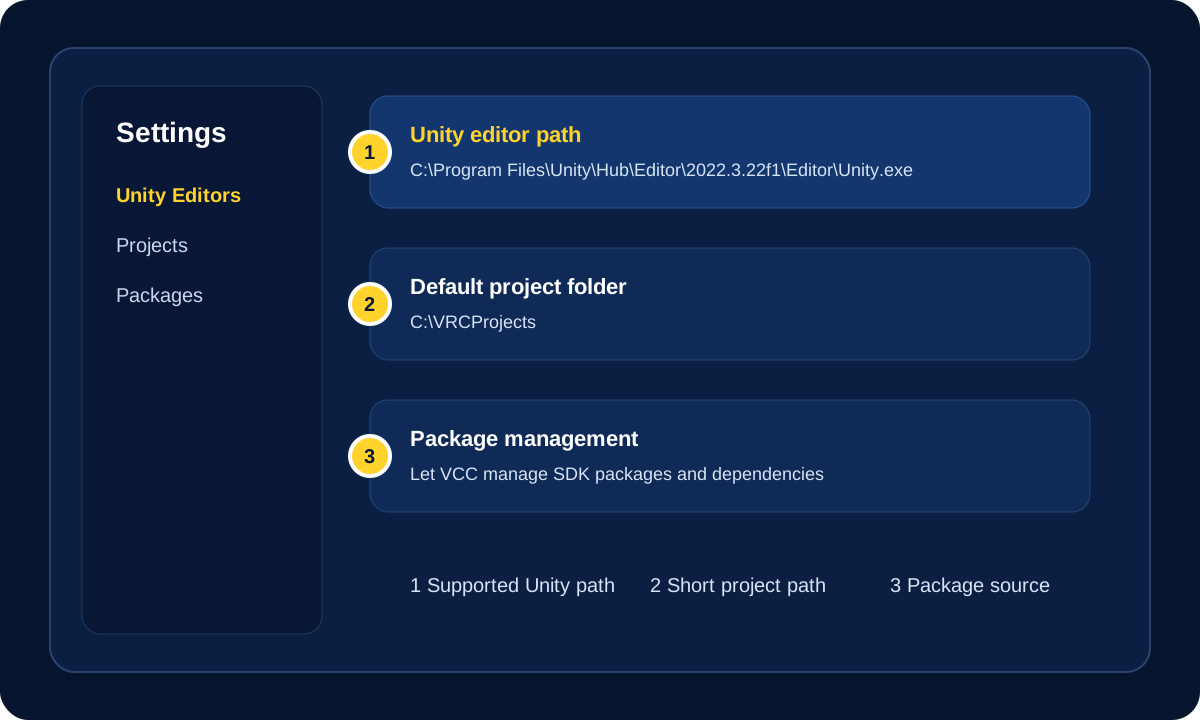
2022.3.22f1is installed. - If VCC still cannot find it automatically, open the VCC Settings page and use the browse button to point at the Unity editor executable manually.
- Ignore Unity Hub prompts to install newer Unity versions that VRChat does not support yet.
If the Hub install itself keeps failing, review the Unity Hub log file at:
%UserProfile%\AppData\Roaming\UnityHub\logs\info-log.json
Common Unity editor executable path shape:
C:\Program Files\Unity\Hub\Editor\2022.3.22f1\Editor\Unity.exe
The exact path may differ if Unity was installed somewhere custom.
3. Unity Is Installed But Will Not Launch
This is often a Unity licensing problem, especially on a fresh machine.
Try this:
- Open Unity Hub directly.
- Sign in and activate your Unity Personal license if it has not been activated yet.
- Launch the supported Unity version from Hub once before relying on VCC to launch it.
- If it still silently fails, inspect Unity Hub or Unity logs before changing your VRChat project.
If Unity never launches cleanly on its own, fixing the project is usually the wrong first move.
4. The Project Has Missing Packages Or Backups Fail
The most common reason is still Windows path length.
Fixes:
- Move the project to a shorter path.
- Avoid extra nested folders and very long project names.
- If needed, enable Win32 long paths in Windows.
Good example:
C:\Projects\VRChat\ClubRoom
Bad example:
C:\Users\YourName\Documents\VRChat\Projects\2026\Experiments\Current Build\Very Long Project Name Here
Cloud sync folders can also complicate Unity projects. If a project behaves strangely inside a synced folder, copy it to a short local path and test there before assuming the SDK is broken.
5. Unity Opens But The VRChat SDK Looks Broken
If the VRChat SDK menu, build control panel, or project behavior looks wrong:
- Confirm the project is using the supported Unity version.
- Open the Unity Console and look for red compile errors first.
- Remove or fix broken third-party scripts before blaming the VRChat SDK.
- If this is an older migrated project, check whether old SDK residue or mixed package history is still present.
Use How to Read Unity Console Errors to identify the error code, file or package path, line number, and first relevant stack-trace frame before removing anything.
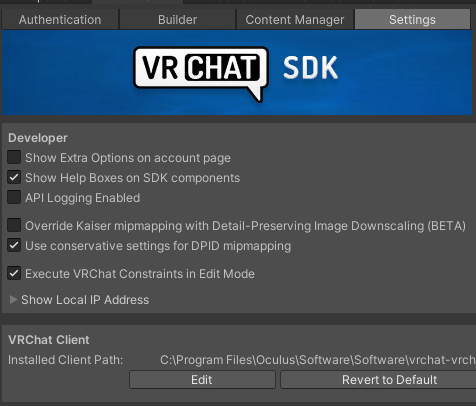
If Unity windows exist but are off-screen, VRChat's official SDK troubleshooting doc recommends clearing the VRC... Unity Editor registry keys under:
Computer\HKEY_CURRENT_USER\Software\Unity Technologies\Unity Editor 5.x
Only do that with Unity closed, and only if you are comfortable making that change.
Do not start with registry edits. They are for a specific problem: SDK windows or Unity tabs exist but are inaccessible/off-screen. For compile errors, missing packages, or wrong Unity version, fix those first.
6. The Project Opens To A Blank Scene
After migration, Unity may open an empty default scene even though your real scene still exists.
Check:
- The
/Assets/folder for your actual scene files. - Whether the previous scene was still saved only as
SampleSceneor another starter scene before migration.
This is often a scene-location issue, not total project loss.
7. VCC Settings Are Corrupted
If VCC will not launch properly after settings changes or a bad update:
- Close VCC.
- Open
%LocalAppData%\VRChatCreatorCompanion\ - Delete
settings.json. - Launch VCC again and let it recreate the file.
Tradeoff:
- Your preferences and project list will reset.
Useful paths:
- Settings file:
C:\Users\You\AppData\Local\VRChatCreatorCompanion\settings.json - Logs folder:
C:\Users\You\AppData\Local\VRChatCreatorCompanion\Logs
If you want a softer reset, rename settings.json to settings.json.old instead of deleting it. VCC can create a new settings file while the old one remains available for reference.
8. Legacy SDK And Package Mixing Problems
Do not mix legacy VRChat SDK imports into VCC-managed projects.
Avoid this:
- Importing
VRCSDK3...unitypackageinto a project already managed by the Creator Companion
Safer pattern:
- Let VCC manage VRChat SDK packages
- Only import non-SDK custom
.unitypackageassets when needed - If an old project is badly mixed, it is often faster to create a fresh VCC test project and compare behavior there
Escalation Path
If the basic fixes above do not solve it:
- Check the VCC logs.
- Check the Unity Console for red errors.
- Compare against a brand-new VCC project on the same machine.
- Check Unity Editor logs if Unity itself fails.
- Use VRChat's official help knowledgebase or support request flow.
Useful log locations:
| Log | Path |
|---|---|
| VCC logs | C:\Users\You\AppData\Local\VRChatCreatorCompanion\Logs |
| VCC settings | C:\Users\You\AppData\Local\VRChatCreatorCompanion\settings.json |
| Unity Hub log | %UserProfile%\AppData\Roaming\UnityHub\logs\info-log.json |
| Unity Editor log | C:\Users\You\AppData\Local\Unity\Editor\Editor.log |
Help! VCC opens to a blank white screen.
Check WebView2 first, then try the browser workaround at http://localhost:5476/ while the VCC app is still running.
Help! VCC cannot find Unity.
Install the supported Unity editor, activate Unity Hub, then point VCC Settings at the correct Unity executable if automatic detection fails.
Help! Packages or backups keep failing.
Move the project to a short local path before deeper troubleshooting. Long or synced paths are a common cause of package and backup problems.
Help! A fresh VCC project works but my real project does not.
Treat that as evidence that the machine setup is mostly okay. Focus on the real project's packages, imported scripts, old SDK residue, path length, and red Console errors.
Help! I already imported an old SDK package.
Back up the project, then compare against a fresh VCC project. For beginners, recreating the project cleanly is often safer than trying to surgically remove old SDK files.
Official References
- VRChat Creator Companion Getting Started
- VRChat Creator Companion FAQ
- VRChat Current Unity Version
- VRChat SDK Troubleshooting
Related Navigation
- VRChat Documentation
- VRChat Creator Guides
- Fix Your First Broken VRChat Project
- Setting Up Your Avatar Project
- Unity Version Guide
- Fix Invalid Package Dependencies in Unity
- Unity3D Documentation
Fix VCC Problems Without Breaking The Project
The goal is to separate app problems, Unity install problems, package problems, and project problems before changing files. That keeps a fix from turning into a rebuild.
Suggested Order
- Prove the machine works Open VCC, Unity Hub, and a fresh test project before assuming the real project is damaged.
- Check version and path issues Most confusing VCC failures come from wrong Unity versions, path length, synced folders, or stale settings.
- Use logs only after basic checks Once setup and path issues are ruled out, use VCC and Unity logs to narrow the actual failure.
Related VRCreators Guides
Reference Links
Common Questions
What should I check first when VCC is broken?
First check whether VCC launches, Unity Hub opens the supported editor, and a fresh VCC test project works. That tells you whether the issue is system-wide or project-specific.
Should I delete packages when VCC cannot repair a project?
Not first. Back up the project, shorten the path, confirm the Unity version, and compare against a fresh VCC project before deleting package or SDK files.
