Unity Version Guide For VRChat Creators
If you are making VRChat worlds or avatars, use the Unity version VRChat supports, not whatever Unity Hub says is newest.
As of this review, VRChat lists Unity 2022.3.22f1 as the current supported Unity version for creator projects. Check the official VRChat current Unity version page before changing editor versions, especially if Unity Hub shows an update or security warning.
Start with VRChat Creator Companion, then let it install or find the Unity editor VRChat expects.
- Download VRChat Creator Companion or follow the official VCC getting started guide.
- Create new VRChat projects from VCC, not from a blank Unity Hub project.
- Install 2022.3.22f1 with Android Build Support if you plan to upload for Quest or Android.
Use the exact Unity editor version VRChat lists for creator projects. Do not use Unity 6, a newer Unity 2022 patch, or a random Hub recommendation unless VRChat's own docs say that version is supported.
Video Companion
These two setup videos are useful if you want to see the Creator Companion and Unity 2022 workflow before following the written steps.
Download and Setup VRChat's Creator Companion
How to Set Up VRChat Creator Companion, Unity 2022, and Plugins
Quick Answer
Most creators should do one of these:
| If you are... | Do this |
|---|---|
| Starting a new world or avatar | Install VRChat Creator Companion, create the project there, and use the Unity version VCC recommends. |
| Choosing a project type | Use an Avatar template for avatar work, or a World/UdonSharp template for world work. Do not mix production avatar and world work into one project. |
| Installing Unity by hand | Use VRChat's current Unity version page or Unity's 2022.3.22f1 release page. |
| Opening an older Unity 2019 project | Back it up first, then follow VRChat's Unity 2019 to 2022 upgrade guide. |
| Making Quest or Android content | Install Android Build Support on 2022.3.22f1. Do not install a newer editor just to get Android support. |
| Seeing a Unity Hub warning | Pause and check VRChat's docs before upgrading. VRChat may tell creators to stay on the supported editor. |
| Maintaining a live world or avatar | Keep the known-working project on the supported version unless you have a reason, a backup, and time to test. |
VRChat Creator Companion Recommended Unity Version
For normal VRChat world and avatar projects, the recommended Unity version is the one listed by VRChat, not the newest editor shown in Unity Hub. As of this review, VRChat's current Unity version page lists Unity 2022.3.22f1.
VRChat Creator Companion should be your first check because it is built around VRChat's supported SDK and package workflow. If Creator Companion, Unity Hub, and an older tutorial disagree, trust VRChat's current Unity version documentation and avoid upgrading the project until VRChat changes support.
Recommended Setup Path
This is the path I would give a new creator who wants the fewest setup headaches:
- Install VRChat Creator Companion.
- If you want the official walkthrough beside you, keep the VCC getting started guide open.
- Let VCC install or locate Unity 2022.3.22f1.
- Create the VRChat project from VCC using an Avatar, World, or UdonSharp template.
- Put active projects in a short local folder, such as
C:\VRCProjects, rather than Desktop, Downloads, OneDrive, Dropbox, or another synced folder. - Add or update the VRChat SDK packages through VCC.
- Open the project from VCC. For normal VRChat work, do not open the project directly from Unity Hub unless you know exactly why you are bypassing VCC.
The point is boring but important: VCC, the project template, the SDK packages, and the Unity editor should all agree with each other before you start importing assets.
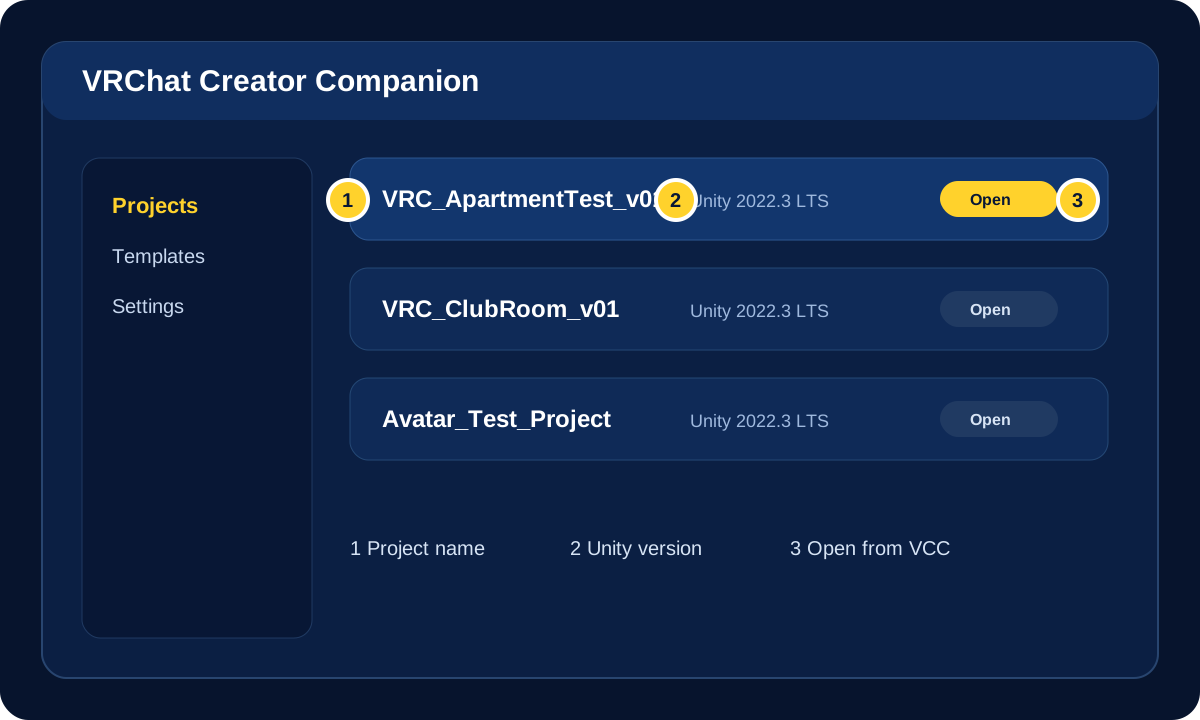
What Creator Companion Does For The Project
Creator Companion is not just a launcher. It creates VRChat Unity projects from VRChat templates, keeps the project in its project list, manages VPM packages, and helps migrate older SDK projects into the current package format.
That matters because VRChat projects are not plain empty Unity projects. An Avatar template includes the Base and Avatar SDKs. A World template includes the Base and World SDKs, plus ClientSim. UdonSharp starts from the World template and adds UdonSharp for C#-style Udon scripting.
For a beginner, the simple rule is:
- Make avatar work in a VCC Avatar project.
- Make world work in a VCC World or UdonSharp project.
- Keep experiments in their own throwaway project, not inside the production world or avatar you care about.
You can install Unity through Unity Hub, but use VCC to create, manage, update, and open VRChat projects.
What Unity Version Does VRChat Use?
VRChat currently documents Unity 2022.3.22f1 as the supported editor for creator projects. That is the version to use for normal VRChat world and avatar work until VRChat changes its official guidance.
That does not mean "any Unity 2022 version." It means the specific editor version VRChat lists. A nearby patch version can still be the wrong version for VRChat uploads, even if Unity Hub presents it as newer or safer.
Why Not Use The Latest Unity Version?
Unity Hub is built for general Unity development, so it may offer newer editors such as later Unity 2022 patches, Unity 2023, or Unity 6. VRChat creator projects are more specific than that.
VRChat creator projects depend on the editor version and SDK/package setup VRChat documents. Opening a project locally is not the same as using a supported editor; VRChat warns that upgrading past the recommended version can result in uploaded content not loading.
When Unity Hub Warns About Updates
Unity Hub may show warnings or suggest newer editor versions. For VRChat work, treat those warnings as a prompt to check VRChat's official supported Unity version before changing anything.
If VRChat still supports the version you already use, keep the project there.
VRChat's current Unity version page also includes a specific October 2025 Unity security-vulnerability warning. For VRChat world and avatar projects, VRChat says it is safe to remain on the supported editor version, 2022.3.22f1, even if Unity Hub displays that warning. That advice is for VRChat creator projects; do not treat it as general advice for standalone Unity games or apps.
Install The Right Modules
Install modules on the same supported editor version. Do not install a different Unity version just because you forgot a module.
| Target | Module |
|---|---|
| PC-only worlds or avatars | No mobile module is required for a basic PC workflow. |
| Quest or Android worlds/avatars | Android Build Support, including the Android SDK/NDK and OpenJDK options if Unity Hub shows them. |
| iOS content path | iOS Build Support on the supported editor. |
If you already installed 2022.3.22f1 and forgot Android support, open Unity Hub, find that exact editor version, choose Add modules, and add Android Build Support there.
If You Prefer Installing Unity Yourself
VCC is still the easiest path, but manual installs are fine when you know exactly what you are matching. Treat Unity Hub as the installer for the exact editor version, not as the authority on which editor your VRChat project should use.
- Open VRChat's current Unity version page.
- Use its Unity install link or open Unity's 2022.3.22f1 release page.
- Install that exact version through Unity Hub.
- Add Android Build Support if you need Quest or Android uploads.
- Open VCC and confirm it can detect the editor.
- Create or open the VRChat project from VCC.
On a typical Windows Unity Hub install, the editor executable may be under a path like:
C:\Program Files\Unity\Hub\Editor\2022.3.22f1\Editor\Unity.exeIf VCC cannot find Unity automatically, use VCC settings to browse to the editor executable.
If you create a plain Unity project in Unity Hub first, you still need VCC to add and manage the VRChat SDK packages. New creators should avoid that path and start from a VCC Avatar, World, or UdonSharp template instead.
Existing Projects Need More Care
If you are new to this workflow, do not migrate an old project in place. Make a copy first.
Before migrating:
- Close Unity.
- Back up the full project folder.
- Keep the original backup untouched.
- Add the project to VCC and manage it there.
- Let VCC update SDK packages instead of dragging in old SDK
.unitypackagefiles. - Test uploads on every platform the project supports.
If the project is still on Unity 2019, use VRChat's Upgrading Projects to 2022 guide. After a project has uploaded from Unity 2022, do not expect to keep uploading that same world or avatar from Unity 2019.
Good Project Habits
- Name project folders with version context, such as
WorldName_Unity2022. - Keep active Unity projects out of synced folders unless you know how your sync tool handles Unity metadata.
- Use one production project for one avatar or one world. Do not build avatars, worlds, and experiments in the same working project.
- Choose the VCC template that matches the job: Avatar for avatars, World or UdonSharp for worlds.
- Write down the Unity version and SDK version used for important releases.
- Avoid editor and package updates right before an event, client delivery, or public launch.
- When a project is working, make backups before you "just quickly update something."
Common Problems
Help! Unity Hub wants me to upgrade.
Do not upgrade just because Hub suggests it. Check VRChat's current supported Unity version first, then update only when VRChat supports the target version and your project is backed up.
Help! VCC cannot find Unity.
Install the exact supported editor version, then point VCC to the editor executable in its settings. If Unity Hub installed the editor normally, look under the Unity Hub editor folder for 2022.3.22f1\Editor\Unity.exe.
Help! I opened the project from Unity Hub.
Close Unity, open Creator Companion, and open the project from the VCC Projects list. If Unity Hub opened the project in the wrong editor version, keep your backup untouched and reopen a copy with VRChat's supported editor.
Help! I need Quest support too.
Add Android Build Support to the same supported Unity editor. Quest support is a platform module requirement, not a reason to move to an unsupported Unity version.
Help! The project has old SDK files in Assets.
Back up the project before touching package files. Current VCC projects should use VPM packages managed by Creator Companion. Do not import legacy VRChat SDK unitypackages into a VCC project.
Should I install Unity 2023 or Unity 6 for VRChat?
No, not for normal VRChat creator projects unless VRChat's official documentation says that version is supported. Use the specific version VRChat lists.
Can I have multiple Unity versions installed?
Yes. Unity Hub can keep multiple editors installed. Just make sure each VRChat project opens with the version VRChat supports for that project.
Official References
- VRChat Current Unity Version
- Download VRChat Creator Companion
- VRChat Creator Companion Getting Started
- VRChat Creator Companion Package Manager
- VRChat Creator Companion Templates
- VRChat Creator Companion FAQ
- VRChat Managing Unity
- VRChat Upgrading Projects to 2022
- VRChat Minor Unity Upgrades
- Unity 2022.3.22f1 Release Page
Final Advice
For VRChat, the correct Unity version is the one VRChat supports. That sounds obvious, but it is the mistake that trips people up: Unity Hub is allowed to care about the newest Unity editor, while VRChat cares about the editor that matches its SDK and upload pipeline.
Start with VCC, keep backups, and only move Unity versions when VRChat's own docs say it is time.
Related Navigation
- VRChat Documentation
- Setting Up VRChat Creator Companion
- Unity Hub Installation
- Creator Companion Troubleshooting Guide
- World Upload Troubleshooting Checklist
- Quest Compatibility Checklist
- Setting Up Your Avatar Project
Before You Install Or Upgrade Unity
Start here when you need the practical decision: which Unity version to use, where to get it, and what to avoid before opening a VRChat project.
Suggested Order
- Check VRChat first Use the official current Unity version page before trusting Unity Hub prompts or older tutorials.
- Open projects through VCC Open VRChat projects from Creator Companion so the project, SDK packages, and supported Unity editor stay aligned.
- Back up before migration Never upgrade an old world or avatar project in place without a copy you can return to.
Related VRCreators Guides
Reference Links
- VRChat Current Unity Version Official source for the Unity editor version VRChat currently supports.
- Creator Companion Getting Started Official VCC setup path for creating VRChat projects.
- Unity 2022.3.22f1 Release Page Unity release page for the editor version currently used by VRChat creator projects.
Common Questions
What Unity version should I use for VRChat right now?
Use the Unity version listed by VRChat on its current Unity version page. As of this review, that version is Unity 2022.3.22f1.
Should I upgrade because Unity Hub says a newer version exists?
No. For VRChat creator projects, only upgrade when VRChat documents support for that editor version and your project is backed up.
