Setting Up VRChat Creator Companion
VRChat Creator Companion, usually shortened to VCC, is VRChat's official tool for creating and managing Unity projects for VRChat avatars and worlds. It integrates the VRChat Package Manager, or VPM, so SDK packages, repositories, dependencies, and supported Unity versions can be managed in one place.
If you are new to VRChat world creation, treat VCC as the front door for your projects. Create projects from VCC, open projects from VCC, and let VCC manage the SDK packages instead of manually importing old SDK files into Unity.
Create a fresh world project through Creator Companion and let it manage Unity and SDK packages.
- Install VCC and the Unity version it recommends for the current VRChat SDK.
- Create the project from a VCC world template in a short local folder path.
- Confirm VRChat SDK - Worlds is installed before opening Unity.
Modern VRChat projects should use Creator Companion and VPM-managed packages. Avoid dragging old SDK .unitypackage files into a VCC project unless an official guide specifically tells you to.
Video Companion
This video matches the beginner workflow: creating avatar and world projects through Creator Companion instead of manually assembling SDK folders in Unity.
Create Avatars & World Projects - VRChat Creator Companion
What VCC Does
VCC is not just a download launcher. It is the project manager VRChat expects creators to use for current SDK projects.
| VCC area | What it helps with |
|---|---|
| Projects | Create, locate, open, and manage VRChat Unity projects. |
| Templates | Start avatar or world projects with the right SDK structure. |
| Packages | Install, update, and track official and community VPM packages. |
| Unity versions | Detect and help install supported Unity versions. |
| Settings | Manage paths, backups, repositories, and project behavior. |
| Learn/resources | Find links to VRChat creator documentation and related resources. |
VCC has a graphical interface for normal project work and command-line functionality for advanced or automated workflows. VRChat documents Windows 10/11 as the normal full-GUI path, with Linux and macOS covered through command-line functionality. Most beginners should expect the normal VCC app workflow on Windows and check the official VCC docs before following platform-specific advice.
VRChat Creator Companion Quick Answers
| Question | Short answer |
|---|---|
| What does VRChat Creator Companion do? | It creates VRChat Unity projects, manages SDK packages through VPM, tracks project state, and helps keep projects aligned with VRChat's supported Unity version. |
| What is the VRChat Creator Companion recommended Unity version? | Use the Unity version VRChat currently supports for SDK projects, then let Creator Companion create or repair projects around that version. |
| Which Unity version should VCC use? | As of this review, VRChat lists Unity 2022.3.22f1 as the supported editor version. Check the Unity version guide before changing versions. |
Should I import SDK .unitypackage files manually? |
Usually no. Current projects should use VCC and VPM-managed packages unless official VRChat guidance says otherwise. |
| Can VCC make avatar and world projects? | Yes. Choose the matching template or SDK package for the project type you are building. |
| Where is the VRChat SDK download? | For current projects, use the official VRChat Creator Companion download link, then install the SDK through Creator Companion and VPM instead of hunting for an old manual SDK download. |
| Where is VRChat SDK documentation? | Use VRChat's creator documentation for official SDK behavior, then use this guide for the beginner setup path. |
VRChat SDK Download And Documentation Path
For modern VRChat projects, "VRChat SDK download" usually means installing the SDK package through VRChat Creator Companion, not downloading a standalone package and dragging it into Unity by hand.
Use this path for a clean SDK VRChat setup:
- Install Creator Companion from VRChat's official download or creator documentation path.
- Create an avatar or world project in VCC.
- Let VCC install the right VRChat SDK - Avatars or VRChat SDK - Worlds package through VPM.
- Open the project from VCC.
- In Unity, check that the VRChat SDK menu and SDK control panel appear after scripts finish compiling.
If you are searching for Unity SDK VRChat setup steps, use the same workflow. Unity is the editor, but VCC is the tool that keeps the VRChat SDK packages, project templates, dependencies, and supported Unity version aligned.
Official VRChat SDK documentation is still the primary reference for platform behavior, upload rules, and current SDK details. This VRCreators page focuses on the beginner setup path: how to get from no project to a clean Unity project where the SDK panel opens correctly.
Before You Start
Have these ready before creating the project:
- A VRChat account you can sign in to.
- Unity Hub installed.
- Enough disk space for Unity, the SDK, packages, and your project files.
- A stable internet connection for package downloads.
- A short local project folder, such as
C:\VRCProjects. - Time to let Unity import and compile without interruption.
Avoid putting active Unity projects in cloud-synced folders like OneDrive or Dropbox. Also avoid very long paths, folders with unusual symbols, and temporary locations like Downloads.
1. Install Creator Companion
- Download VRChat Creator Companion from the official VRChat downloads or creator documentation path.
- Run the installer.
- Open Creator Companion after installation.
- Sign in if VCC or the SDK asks you to.
- Let VCC complete required setup or dependency checks.
Useful default paths from the official VCC docs:
| Path type | Default location |
|---|---|
| Installation path | %LOCALAPPDATA%\Programs\VRChat Creator Companion |
| Configuration path | %LOCALAPPDATA%\VRChatCreatorCompanion |
You usually do not need those paths during normal setup, but they are helpful when troubleshooting a broken install or VCC configuration.
2. Install the Supported Unity Version
VRChat SDK projects only support specific Unity versions. VCC can detect and help install supported Unity versions, which is safer than guessing from Unity Hub.
- Open VCC.
- Check the Unity version VCC recommends for the current SDK workflow.
- If it is missing, let VCC open Unity Hub and install it.
- Wait for the full Unity install to finish.
- Confirm the exact Unity version matches what VCC expects.
Do not upgrade a VRChat project to a random newer Unity version just because Unity Hub offers one. A project can open in the wrong editor and still fail later during SDK work, package import, or upload.
3. Create a World Project
Create the project from VCC so the SDK and VPM metadata start clean.
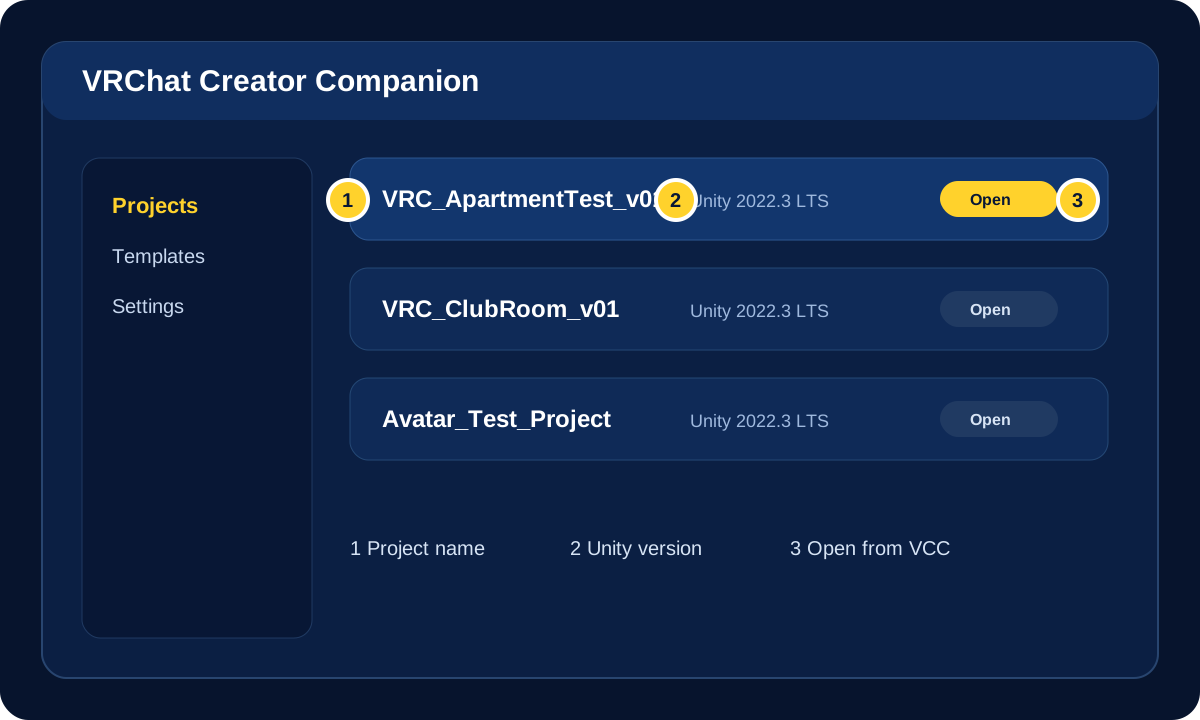
- Open Projects in Creator Companion.
- Choose Create New Project.
- Select a world template.
- Give the project a clear name.
- Choose a short local folder path.
- Create the project and wait for setup to finish.
Good beginner project names are boring in the best way:
VRC_ClubRoom_v01VRC_ApartmentTest_v01VRC_MuseumBlockout_v01
4. Check Packages Before Opening Unity
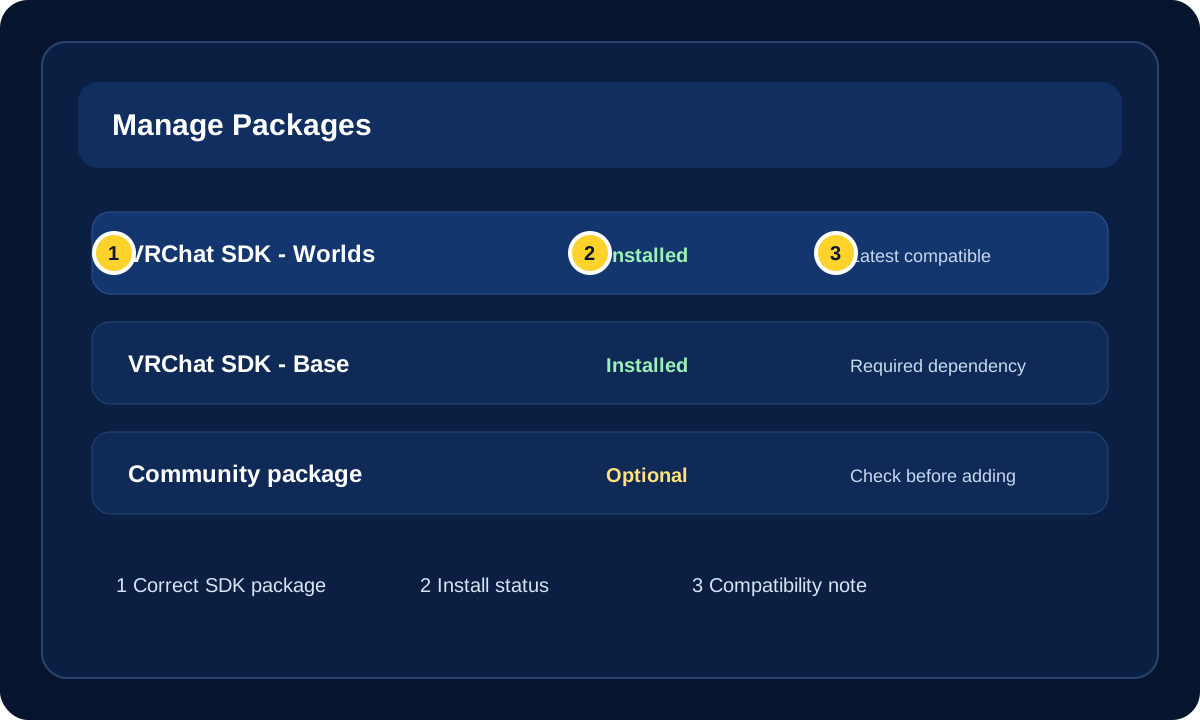
VPM is the package system inside Creator Companion. It helps keep the VRChat SDK, packages, repositories, and dependencies updated for avatar and world projects.
Before launching Unity:
- Open the project entry in VCC.
- Review the package list.
- Confirm VRChat SDK - Worlds is installed for a world project.
- Let any pending install or update finish.
- Open the project from VCC.
5. Let Unity Import Cleanly
The first Unity launch can take a while. Let it finish importing packages and compiling scripts before you start changing files.
During first import:
- Do not close Unity because it looks slow.
- Do not move the project folder.
- Do not delete package folders manually.
- Do not start fixing warnings until import is finished.
When Unity settles:
- Open the Console window.
- Look for red compile errors.
- Open the VRChat SDK panel.
- Sign in if the SDK asks you to.
- Save your first scene.
Warnings can be normal. Red compile errors are the blocker.
6. Save a Basic Project Structure
Create a simple folder layout before importing assets from tutorials or stores.
Assets/ScenesAssets/MaterialsAssets/TexturesAssets/ModelsAssets/PrefabsAssets/AudioAssets/Scripts
A good first scene path is:
Assets/Scenes/MainWorld.unity
This is less glamorous than building, yes. It is also the kind of tiny setup habit that saves future-you from digging through a messy Assets folder at 2 AM.
Healthy Setup Checklist
Your setup is ready for beginner world work when:
- VCC lists the project in Projects.
- The project opens from VCC.
- Unity uses the supported version VCC expects.
- VRChat SDK - Worlds is installed in VCC.
- Unity finishes compiling.
- The VRChat SDK panel appears.
- The Console has no red compile errors.
- You can save and reopen a scene.
Common Beginner Mistakes
Help! I installed the wrong Unity version.
Install the Unity version VCC expects, then open the project through Creator Companion. Do not upgrade the project to a random newer editor version just because Unity Hub offers it.
Help! I imported the SDK manually.
Old tutorials may show manual SDK imports, but VCC projects should use VPM packages managed by Creator Companion. For a beginner, the cleanest fix is often creating a fresh VCC test project and comparing the package list.
Help! The SDK panel is missing.
Check that the Worlds SDK package is installed in VCC, wait for Unity to finish compiling, and fix red Console errors first. Compile errors can stop SDK editor windows from appearing correctly.
Help! My project is in a synced folder.
Move future projects to a short local path such as C:\VRCProjects. Cloud sync tools can interfere with Unity metadata, package imports, and file references.
Help! VCC still remembers a broken project.
Use VCC's project management tools to remove or re-add the project entry instead of deleting random configuration files first. The default configuration path is useful for deeper troubleshooting, but start with the app controls.
Troubleshooting Path
If the project creates but Unity fails to open it:
- Close Unity and VCC.
- Reopen VCC.
- Confirm the supported Unity version is installed.
- Open the project from VCC again.
- Check the Console after Unity finishes importing.
If package or dependency errors continue:
- Back up the project folder.
- Open the project entry in VCC.
- Let package actions finish.
- Create a fresh VCC test project if needed.
- Compare the package list and Unity version between the broken project and the fresh one.
For a fuller fix-by-symptom guide, continue to Creator Companion Troubleshooting.
Official References
- VRChat Creator Companion Getting Started
- VRChat Creator Companion FAQ
- VRChat Current Unity Version
- Download VRChat Creator Companion
- VRChat Creator Documentation
The VRChat Wiki pages for Creator Companion and VPM can be useful secondary context, but they are not the authority for installer behavior, supported Unity versions, platform support, or SDK workflow. Those claims should stay tied to the official docs above.
Next Step
Once your setup is healthy and the SDK opens correctly, continue to How to Upload a World in VRChat.
Next Paths
- Unity Version Guide For VRChat Creators - confirm the editor version before upgrading, repairing, or moving a project.
- Your First VRChat World Guide - build a small starter world after VCC and the Worlds SDK are working.
- ClientSim World Testing - test basic world interactions in Unity before the private upload loop.
- Fix Your First Broken VRChat Project - use this when Unity, packages, scripts, or SDK windows are already failing.
- World Upload Troubleshooting Checklist - move here when the project opens but validation, build, or upload fails.
- VRC Beginner Documentation - follow the beginner sequence from setup into world creation, troubleshooting, performance, and first interactions.
