Set Up a Skybox and Environment Lighting in Unity
A skybox is a Material that Unity draws behind the scene. The same Material can also supply ambient light and scene-wide reflections, while a Directional Light assigned as the Sun Source controls how supported skybox shaders respond to the sun.
Connect the visible sky, ambient source, sun, and reflection source before generating lighting.
- Open Window → Rendering → Lighting and select the Environment tab.
- Assign a Skybox Material, set Environment Lighting Source to Skybox, and choose the Sun Source.
- Review Environment Reflections and fog, then generate lighting when the environment uses baked data.
VRChat uses Unity 2022.3.22f1 and the Built-in Render Pipeline. For Android worlds, VRChat recommends baked lighting and Light Probes, advises keeping lightmap resolution low, and warns that realtime lights are very expensive.
1. Create or Import a Skybox Material
If the project already contains a compatible skybox Material, continue to the next section.
To create one:
- Select Assets → Create → Material.
- Select the Material.
- Open its Shader menu.
- Choose Skybox, then select the skybox shader that matches the available textures or procedural setup.
- Assign the required textures and properties shown by that shader.
Each skybox shader expects its own inputs. A panoramic image, cubemap, and six-sided sky use different Material properties.
2. Assign the Scene Skybox
- Open Window → Rendering → Lighting.
- Select the Environment tab.
- Drag the skybox Material into Skybox Material.
Unity now uses that Material as the background for the scene’s cameras unless an individual Camera has a Skybox component override.
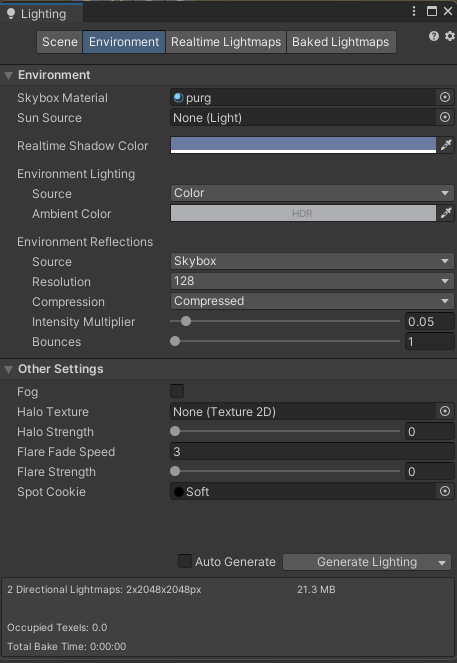
3. Assign the Sun Source
Sun Source selects the Light Unity uses to represent the sun for the skybox and scene.
- Create or select the intended Directional Light.
- Return to the Lighting window’s Environment tab.
- Assign that Light to Sun Source.
- Rotate the Directional Light to align it with the visible sun or moon in the skybox.
When Sun Source is None, Unity uses the brightest Directional Light in the scene. A Light whose Render Mode is Not Important does not affect the skybox.
4. Set the Ambient Light Source
Environment Lighting controls the ambient light that is present throughout the scene rather than coming from one Light GameObject.
| Source | Ambient-light input |
|---|---|
| Skybox | Samples colors from the assigned Skybox Material from different directions |
| Gradient | Blends separate Sky, Equator, and Ground colors |
| Color | Uses one flat ambient color |
After selecting the source, adjust Intensity Multiplier. Unity accepts values from 0 to 8 and uses 1 by default.
Use Skybox when the scene should inherit the sky’s directional color variation. Use Gradient when the environment needs explicit sky, horizon, and ground colors. Use Color when a single ambient value is intentional.
5. Select the Ambient Mode
When Environment Lighting uses the skybox, Ambient Mode controls when Unity updates that lighting:
| Ambient Mode | Update behavior |
|---|---|
| Realtime | Unity continually regenerates ambient lighting and can respond to a skybox changed during runtime |
| Baked | Unity updates ambient lighting when you select Generate Lighting |
Use Baked when the skybox does not change during play. Use Realtime only when the world changes its skybox or environment lighting at runtime and the additional calculation is required.
6. Configure Environment Reflections
Environment Reflections provide the global fallback used by reflective materials and Reflection Probes.
| Setting | Purpose |
|---|---|
| Source: Skybox | Uses the assigned Skybox Material as the reflection source |
| Source: Custom | Uses a selected Cubemap asset or cube RenderTexture |
| Resolution | Sets the skybox reflection resolution when Source is Skybox |
| Compression | Controls whether Unity compresses the reflection texture |
| Intensity Multiplier | Controls how strongly the source appears in reflective objects |
| Bounces | Sets how many times Reflection Probes evaluate reflections between objects |
Use local Reflection Probes when a room’s reflective surfaces should show that room rather than only the scene-wide skybox.
7. Add Fog
Fog is in the Environment tab’s Other Settings section.
- Enable Fog.
- Set its Color.
- Select a Mode.
- Configure the corresponding distance or density controls.
| Fog mode | Controls |
|---|---|
| Linear | Start and End distances |
| Exponential | Density |
| Exponential Squared | Density with a faster increase over distance |
For an outdoor skybox, Unity recommends choosing a fog color that suits the sky so distant geometry blends into the background.
8. Override the Skybox for One Camera
The Environment-tab Skybox Material applies to the scene’s cameras. To override it for one Camera:
- Select the Camera GameObject.
- Select Add Component → Rendering → Skybox.
- Assign a Material to Custom Skybox.
The Camera’s Skybox component now overrides the scene skybox for that Camera.
9. Update Baked Environment Data
When Ambient Mode is Baked, or when baked lights, Light Probes, or Reflection Probes depend on the environment:
- Open the Lighting window.
- Disable Auto Generate when manual control is required.
- Select Generate Lighting.
- Wait for the bake to finish.
- Inspect the scene from the Game view and the player’s occupied locations.
The Generate Lighting operation can update baked global-illumination lightmaps, Light Probes, and Reflection Probes.
Video Example
This existing tutorial demonstrates the lighting setup inside a beginner VRChat world.
Help! The skybox changed but the ambient light did not.
Set Environment Lighting Source to Skybox. If Ambient Mode is Baked, select Generate Lighting so Unity updates the baked environment data.
Help! Rotating the Directional Light does not move the sky’s sun.
Assign that Directional Light to Sun Source. Confirm its Render Mode is not Not Important, then check whether the selected skybox shader supports a sun driven by the Directional Light.
Help! Reflective materials show the wrong environment.
Review Environment Reflections Source and Intensity Multiplier. Add and bake a local Reflection Probe when an interior surface should reflect its room instead of the global skybox.
Help! Fog ends with a visible color seam against the sky.
Choose a Fog color that matches the sky near the horizon, then adjust Linear Start and End or the Exponential Density so geometry blends into the background before the seam becomes visible.
Help! One Camera needs a different skybox.
Add Rendering → Skybox to that Camera and assign its Custom Skybox. This overrides the scene skybox only for that Camera.
Help! The Android version is too expensive.
Keep the environment static where possible, use Baked ambient lighting, bake local lights, add Light Probes for movable objects, and keep lightmap resolution low before testing the Android build again.
Official References
- Unity 2022.3 Manual: Lighting window
- Unity 2022.3 Manual: Using skyboxes
- Unity 2022.3 Manual: Skyboxes
- Unity 2022.3 Manual: Ambient light
- VRChat: Current Unity Version
- VRChat SDK: Getting Started
- VRChat: Android Content Optimization
