Use the Progressive GPU Lightmapper in Unity 2022.3
Unity’s Progressive GPU Lightmapper uses a compatible GPU and its dedicated VRAM to generate baked lightmaps and Light Probes. Unity 2022.3 labels this backend as a preview feature, so keep Progressive CPU available when a scene or workstation cannot complete the GPU bake reliably.
Confirm the hardware requirements before selecting Progressive GPU.
- Open Window → Rendering → Lighting.
- Under Lightmapping Settings, set Lightmapper to Progressive GPU.
- Select Generate Lighting and monitor the bake for tiling, fallback, or memory errors.
The selected lightmapper changes how Unity generates baked data in the Editor; it does not reduce the uploaded world’s runtime cost by itself. VRChat’s Android guidance still recommends baked lighting, Light Probes, and low lightmap resolution.
Unity 2022.3 Requirements
The Progressive GPU Lightmapper requires:
| Requirement | Unity 2022.3 minimum |
|---|---|
| GPU | OpenCL 1.2 support |
| Dedicated GPU memory | At least 4 GB of VRAM |
| CPU | SSE4.1 instruction support |
CPU OpenCL devices are not supported. A machine that does not meet these requirements should use Progressive CPU.
Progressive CPU and Progressive GPU
| Backend | Processing resources | Important behavior |
|---|---|---|
| Progressive CPU | CPU and system RAM | Unity’s default Progressive Lightmapper backend |
| Progressive GPU | GPU and dedicated VRAM | Usually faster unless lightmapper tiling is active |
Unity notes that Progressive GPU can require up to four times more indirect-light samples to reach the same quality as Progressive CPU because the CPU backend uses branched path tracing.
Both backends use the Progressive Lightmapper and require suitable non-overlapping lightmap UVs with enough padding between charts.
1. Create or Assign Lighting Settings
- Open Window → Rendering → Lighting.
- Select the Scene tab.
- Assign an existing Lighting Settings asset or select New Lighting Settings.
- Expand Lightmapping Settings.
The Lightmapper selection belongs to the Lighting Settings asset assigned to the active scene.
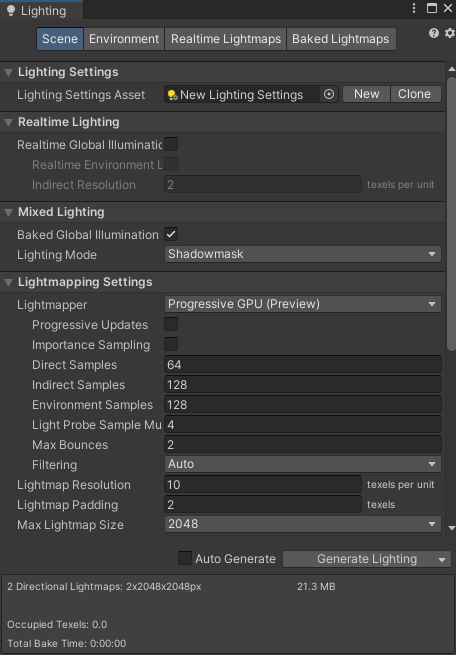
2. Select Progressive GPU
- Find Lightmapper under Lightmapping Settings.
- Change Progressive CPU to Progressive GPU.
- Keep Baked Global Illumination enabled.
- Disable Auto Generate when each test bake should start manually.
- Select Generate Lighting.
If Progressive GPU is unavailable, do not force the project onto an undocumented backend. Recheck the Unity 2022.3 requirements and use Progressive CPU when the workstation does not meet them.
3. Select the Baking GPU
When the computer contains at least two GPUs:
- Open the Lighting window.
- Find Workflow Settings.
- Use GPU Baking Device to select the GPU Unity should use for lighting.
The GPU Baking Device control appears only while the Progressive GPU backend is selected. A separate baking GPU can preserve more VRAM when the primary GPU is also rendering the Scene view.
4. Run a Controlled Test Bake
Before changing final-quality settings:
- Save the scene.
- Disable Auto Generate.
- Use the scene’s current lightmap resolution and sampling settings for a baseline.
- Select Generate Lighting.
- Record whether the bake completes, how long it takes, and whether Unity reports fallback or memory problems.
- Inspect the Baked Lightmaps tab and the Scene view result.
Change one bake setting at a time after establishing the baseline. Otherwise, a faster or slower result cannot be attributed to the backend alone.
5. Recognize Lightmapper Tiling
Lightmapper tiling activates when Unity cannot access enough GPU memory to bake an entire lightmap. Instead of immediately falling back to Progressive CPU, Unity:
- allocates temporary memory on the CPU
- divides the lighting work into tiles sized for the available GPU memory
- bakes those tiles through the GPU
While tiling is active:
- the bake is slower than the same scene without tiling
- progressive updates stop in the Scene view and bake process
- the Progressive Updates setting does not visibly turn off
Tiling cannot be disabled directly. Reduce its likelihood by freeing VRAM or reducing the bake’s memory requirements.
6. Reduce GPU Memory Use
Unity documents several ways to reduce VRAM pressure:
| Change | Where |
|---|---|
| Close GPU-accelerated image, video, or 3D applications | Outside Unity |
| Lower Lightmap Resolution | Lighting window, Lightmapping Settings |
| Disable baked Ambient Occlusion | Lighting window, Lightmapping Settings |
| Reduce anti-aliasing samples | Project Settings → Quality |
| Select a lower-resolution Lightmap Parameters asset | Lighting window, Lightmapping Settings |
| Use OpenImageDenoise | Set Filtering to Advanced and select the CPU-based denoiser |
| Remove small props from lightmaps | Disable Contribute GI and light them with Light Probes |
| Use separate rendering and baking GPUs | Workflow Settings → GPU Baking Device |
OpenImageDenoise runs on the CPU and uses system RAM. Optix and RadeonPro denoisers use GPU resources; Unity notes that RadeonPro uses substantially more GPU memory.
7. Tune Samples for the GPU Backend
Reducing samples can shorten a test bake, but it can also leave noise in the lightmaps. For final output:
- inspect direct and indirect lighting separately
- increase the sample type responsible for visible noise
- use a compatible denoiser
- rebake and compare the same camera positions
Progressive GPU may require up to four times more indirect samples than Progressive CPU for equivalent quality. Do not assume the same indirect-sample value produces the same result on both backends.
8. Inspect the Finished Data
After a successful bake:
- Open the Baked Lightmaps tab.
- Check the number and resolution of generated lightmaps.
- Inspect seams, chart padding, shadow noise, leaks, and texel density.
- Verify Light Probe results on movable objects.
- Enter Play mode and inspect occupied areas.
- Test the intended VRChat PC and Android builds separately.
GPU lightmapping does not correct overlapping lightmap UVs, insufficient chart padding, excessive lightmap resolution, or unnecessary Contribute GI renderers.
Video Example
This existing tutorial shows the broader baked-lighting workflow that the GPU backend accelerates.
Help! Progressive GPU is not available.
Confirm the system has an OpenCL 1.2-capable GPU with at least 4 GB of dedicated VRAM and a CPU with SSE4.1 support. CPU OpenCL devices do not qualify. Use Progressive CPU when the requirements are not met.
Help! Unity falls back to Progressive CPU.
Free GPU memory by closing other accelerated applications, reduce lightmap resolution or anti-aliasing samples, move denoising to OpenImageDenoise, and remove small props from Contribute GI before running the bake again.
Help! Progressive updates stopped and the bake became slow.
Lightmapper tiling may be active because the complete lightmap does not fit in available VRAM. The Progressive Updates control does not visibly disable when this happens. Reduce VRAM use and repeat the bake.
Help! The GPU bake runs out of memory.
Lower Lightmap Resolution, reduce anti-aliasing samples, select lower-resolution Lightmap Parameters, use a CPU denoiser, free VRAM, or select another GPU Baking Device. Progressive CPU remains the fallback backend.
Help! The GPU bake is noisier than the CPU bake.
Increase indirect samples and use a compatible denoiser. Unity documents that Progressive GPU can need up to four times more indirect samples to match Progressive CPU quality.
Help! The Android world is still expensive after switching to GPU.
The backend only changes Editor baking. Reduce final lightmap resolution, remove unnecessary realtime lights and shadows, use Light Probes, and retest the Android build using VRChat’s platform guidance.
Official References
- Unity 2022.3 Manual: Progressive Lightmapper
- Unity 2022.3 Manual: Progressive GPU Lightmapper
- Unity 2022.3 Manual: Lighting window
- Unity 2022.3 Manual: Lightmapping
- VRChat: Android Content Optimization
