Unity Package Manager Basics
Unity Package Manager adds modular editor tools, runtime libraries, feature sets, and Asset Store packages to a project. Package changes affect the project configuration, so everyone opening the same project receives the declared dependencies.
Use Unity Package Manager for Unity Package Manager (UPM) packages. Use VRChat Creator Companion for official and VPM-compatible VRChat packages.
Record the existing version and preserve the project before changing its dependency graph.
- Back up the project or commit its current package files.
- Install, update, or remove one direct package through the tool that owns it.
- Wait for resolution and compilation, then test the affected scenes and tools.
Manage the VRChat SDK and other VPM packages from the project's Manage Project screen in Creator Companion. Unity Package Manager remains appropriate for ordinary UPM packages that the project needs.
Open Package Manager
In Unity 2022.3, select Window > Package Manager.
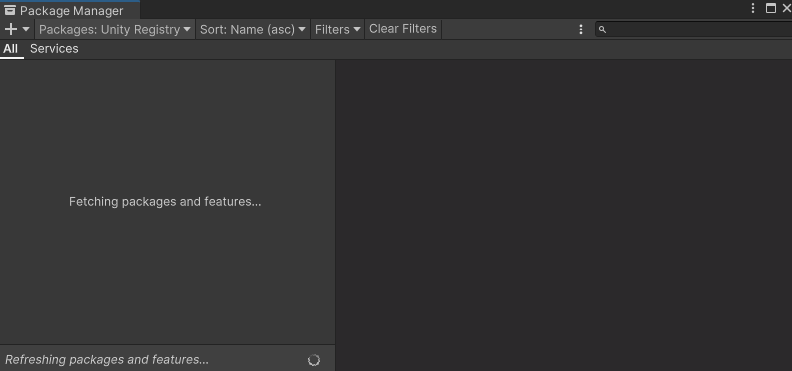
The window contains:
- an add menu for registry, Git, local, and package-name installation
- a package-source menu
- a package list
- filters and search
- a details panel for the selected package
- a status bar for refresh progress and errors
Wait for the status bar to finish refreshing before deciding that a package or version is unavailable.
Select the package source
The source menu changes which packages appear.
| Source | Contents | Common task |
|---|---|---|
| Unity Registry | Packages published through Unity's registry | Find and install a Unity package |
| In Project | Packages already installed or required by the project | Inspect, change, or remove an installed package |
| My Assets | Asset Store packages associated with the signed-in Unity account | Download or import an owned Asset Store package |
| My Registries | Packages from scoped registries configured for the project | Install a package from an authorised third-party registry |
| Built-in | Packages that expose built-in Unity modules | Inspect or disable supported built-in modules |
If a known Unity package is absent from In Project, check Unity Registry. If a provider supplied a scoped registry, confirm that registry is configured before looking under My Registries.
Inspect a package before changing it
Select a package and review its details:
- display name and package name
- installed version
- available versions
- Unity compatibility information
- dependencies
- documentation, samples, or release notes when supplied
The package name is the stable identifier used by manifests and Add package by name. It can differ from the display name shown in the package list.
Install from Unity Registry
- Open Window > Package Manager.
- Select Unity Registry from the source menu.
- Search for the package.
- Select it and review the details panel.
- Confirm that the offered version supports the project's Unity version.
- Select Install.
- Wait for package resolution and script compilation to finish.
After installation, confirm that the package appears under In Project and that the Console has no new package or compile errors.
Install by package name
Use this method only when official package documentation provides the exact identifier.
- Select the add button in Package Manager.
- Select Add package by name.
- Enter the package Name.
- Leave Version (optional) empty to request the latest compatible released version, or enter a complete verified version.
- Select Add.
If Package Manager cannot find the name or version, verify it with the publisher. Do not guess variations of the identifier.
Install from a Git URL
A package publisher may provide a Git repository URL:
- Select the add button.
- Select Add package from git URL.
- Paste the exact URL supplied by the package documentation.
- Select Add.
- Check the Console if cloning or resolution fails.
Git-based packages require Git to be installed and available to Unity. A URL can also target a documented branch, tag, or commit revision.
Use repository URLs only from a trusted publisher. Unity packages can contain editor and runtime code.
Install from a local folder
For a local package:
- Select the add button.
- Select Add package from disk.
- Browse to the package folder.
- Select its
package.json. - Select Open.
Unity adds a reference to that local package; it does not copy the package into the project. Moving or deleting the source folder can break the reference.
Use an embedded package when the package must live and be edited inside the project's Packages folder. Follow Unity's embedded-package documentation before changing a cached or registry package.
Update or switch a UPM package version
Preserve the project before switching versions.
- Select In Project.
- Select the package.
- Review its current version and dependencies.
- Select a compatible version from the version list.
- Apply the version change.
- Wait for resolution and compilation.
- Test the tools, scripts, scenes, prefabs, and builds that use the package.
A newer published version is not automatically compatible with the project's Unity version or other dependencies. Use the package's release notes and compatibility documentation when available.
For a VPM package, make the version selection in Creator Companion instead.
Remove a UPM package
- Select In Project.
- Select the direct package to remove.
- Review its Dependencies information.
- Select Remove.
- Wait for Package Manager and compilation to finish.
- Check the Console and affected project content.
Package Manager disables Remove when another installed package or feature set requires the selected package. The details panel identifies the dependent package. Remove or change the owning direct dependency only when the project no longer needs it.
Removing a UPM package is different from deleting files imported from an Asset Store .unitypackage. Imported assets live in the project's Assets folder and require a separate removal review.
Understand the files Package Manager changes
Package Manager records direct dependencies in:
Packages/manifest.json
It records the resolved dependency graph in:
Packages/packages-lock.json
Use the Package Manager interface for normal changes. Manual manifest editing is reserved for documented installation steps and targeted recovery.
Review both files in source control after a package change. The diff should correspond to the package and dependencies you intended to change.
Pre-release packages
Unity 2022.3 hides pre-release packages from normal registry browsing by default. The Enable Pre-release Packages project setting makes them visible.
Use a pre-release version only when its documentation and the project requirement justify it. Record the previous working version and test the package-dependent workflow after installation.
Creator Companion has its own setting for displaying VPM pre-release packages. Enabling one system's setting does not enable the other.
Verify a package change
- Package Manager finishes refreshing without an error.
- The package appears under In Project at the intended version.
- The Console has no new resolution or compile errors.
- Tools supplied by the package open correctly.
- Scenes and prefabs retain their expected scripts and components.
- Play Mode runs without package-related exceptions.
- A VRChat project still shows its SDK panels and passes relevant SDK validation.
- The manifest and lock-file changes match the intended operation.
The package does not appear in search.
Check the selected source and clear restrictive filters. Unity packages normally appear under Unity Registry, installed packages under In Project, and scoped-registry packages under My Registries.
The install completed, but the tool is missing.
Wait for compilation, then check the package's official documentation for its menu location or setup step. Resolve the first new Console error before reinstalling the package.
The Remove button is disabled.
Another package or feature set requires the selected dependency. Check the package details and Dependencies tab to identify the owner instead of deleting package files manually.
A local package breaks after the project moves.
The project manifest may reference a package folder outside the project. Restore that path or reinstall the package from its new verified location.
A Git package reports that Git was not found.
Install Git, restart Unity, and retry the documented repository URL. If the repository uses Git LFS, install that requirement as well.
Unity reports invalid package dependencies.
Stop making additional package changes and copy the first complete resolution error. Use the dependency-recovery guide to distinguish malformed JSON, unavailable sources, and incompatible versions.
Continue learning
- Understand Unity Package Manifest Files
- Fix Invalid Package Dependencies in Unity
- Install and Remove Unity Add-ons Safely
- Back Up a Unity Project
- VRChat Creator Companion Troubleshooting
Official references
- Unity 2022.3: Package Manager window
- Unity 2022.3: Install a package from a registry
- Unity 2022.3: Install a package by name
- Unity 2022.3: Install a package from a Git URL
- Unity 2022.3: Install a local package
- Unity 2022.3: Switch a package version
- Unity 2022.3: Remove a UPM package
- Unity 2022.3: Pre-release packages
- VRChat Creator Companion: Package Manager
