ProBuilder Blockout Workflow for VR Worlds
A blockout, also called a greybox, is a simple version of a world made to test its dimensions, routes, collision, and important sightlines before finished environment art is added. ProBuilder lets you create and edit that geometry inside Unity.
This guide uses the ProBuilder 5.2 tools available with Unity 2022.3. If the package is not installed, complete Install ProBuilder in Unity 2022.3 first.
Create one playable route, test it, and revise its geometry before expanding the scene.
- Open Tools > ProBuilder > ProBuilder Window and create a floor plus simple room volumes with the Shape tool.
- Use Unity's grid and increment snapping to align walls, floors, stairs, and openings.
- Add the required colliders and a valid VRChat spawn, then test with ClientSim and VRChat Build & Test.
ClientSim is useful for quick tests inside Unity, but it does not reproduce every VRChat feature. Complete a VRChat Build & Test pass before treating the blockout as verified.
What ProBuilder Is Useful For
ProBuilder creates editable Unity meshes. Its Shape tool includes primitives and architectural forms, while its mesh modes let you edit whole objects, vertices, edges, or faces.
| Blockout task | ProBuilder approach |
|---|---|
| Floors, walls, platforms, and room volumes | Create shapes and set numeric dimensions |
| Openings, extensions, and simple structure changes | Select faces, edges, or vertices and edit the mesh |
| Stairs, ramps, arches, and doors | Begin with the closest Shape tool preset |
| Collision proxy geometry | Build a simple mesh that follows the required surface |
| External modelling hand-off | Export selected geometry or preserve the blockout as a Unity asset |
Keep complex finished props and detailed organic modelling in the tool best suited to that work. The blockout only needs enough geometry to test the scene reliably.
Prepare the Scene
Before changing the layout:
- Save the scene.
- Duplicate the scene if it already contains work you need to preserve.
- Create an empty parent such as
Blockoutin the Hierarchy. - Add a clearly visible spawn reference and any objects needed to judge reach or clearance.
- Choose a consistent grid increment for the current structure.
Group geometry by area or function as the scene grows. Names such as Blockout_Spawn, Blockout_MainRoom, and Blockout_Stairs make objects easier to find without changing how ProBuilder works.
Create the First Shapes
Open Tools > ProBuilder > ProBuilder Window, select New Shape, and choose a shape. Set its size in the Shape tool rather than relying only on freehand dragging.
Useful first shapes include:
- A plane or cube for the floor.
- Cubes for walls, platforms, and room volumes.
- A stair or ramp shape for changes in elevation.
- Door and arch shapes where their editable parameters match the layout.
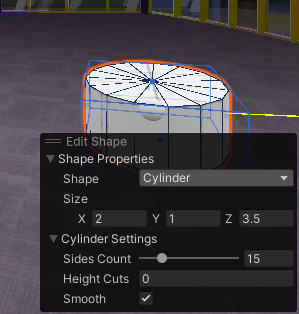
Parametric properties remain available while the object is still an editable shape. After you manually change its mesh topology, returning to the original shape controls requires resetting the shape, which discards those topology edits. Finish the main size and shape adjustments before detailed face or edge work.
Use Object and Element Modes Deliberately
ProBuilder separates whole-object selection from mesh-element selection.
| Mode | Use it for |
|---|---|
| Object | Moving, rotating, scaling, duplicating, or organizing the complete ProBuilder object |
| Vertex | Adjusting individual points |
| Edge | Moving or modifying boundaries between faces |
| Face | Extruding, moving, deleting, or assigning a material to selected surfaces |
Return to Object mode when an edit should affect the entire object. Switch to Vertex, Edge, or Face mode only for a mesh-level change. This prevents accidental topology edits when you intended to move a complete wall or platform.
Build the Playable Route
Create the smallest connected section that can be tested from the spawn to an important destination:
- Place the main floor surfaces.
- Add walls and blocking volumes.
- Create required openings, stairs, ramps, or platforms.
- Add simple geometry for large obstacles and landmarks.
- Enter Play Mode and walk the route.
- Correct dimensions, collision, and visibility before adding another area.
Use face extrusion for connected extensions where it keeps the mesh understandable. Use separate ProBuilder objects where an area needs independent materials, collision, visibility, or replacement during the art pass.
Align Geometry With Unity Snapping
In Unity 2022.3, ProBuilder uses the Unity Editor's grid and snap controls. Open the Grid and Snap overlay in the Scene view to set move, rotate, and scale increments.
- Use Global handle orientation when snapping an object or mesh element to the world grid.
- Hold Ctrl on Windows or Command on macOS while moving, rotating, or scaling to apply increment snapping.
- Use matching dimensions and snap increments for modular surfaces that must meet cleanly.
- Inspect corners and floor joins after snapping instead of assuming they are connected.
See Unity's Grid snapping manual for the current Editor controls.
Keep the Mesh Easy to Revise
Blockout geometry changes frequently. Keep it understandable:
- Avoid adding segments that do not change the silhouette or support a required edit.
- Delete hidden faces when they are no longer needed, especially before manual UV work.
- Use separate objects for sections that will be replaced independently.
- Check the selected mesh in Vertex, Edge, and Face mode after a complicated edit.
- Duplicate a working object before a destructive topology change.
ProBuilder's Poly Shape tool is useful when a floor or boundary cannot be represented efficiently by a standard primitive. Draw the outline, set its height, and keep the result as simple as the layout allows.
Use Temporary Materials and UVs
Assign simple, contrasting materials to distinguish floors, walls, hazards, openings, or areas under review. In Face mode, a material can be assigned to selected faces without splitting the object.
For early blockouts:
- Use automatic UVs when they provide enough visual scale information.
- Use a repeating texture or grid material to reveal stretching and inconsistent proportions.
- Open ProBuilder's UV Editor when a specific surface needs manual mapping.
- Remove unnecessary hidden faces before manual UV editing.
Do not spend time polishing final UVs on geometry that is still likely to move or be replaced.
Add and Check Colliders
A visible blockout surface is not automatically a reliable playable boundary. Inspect each object's Collider components and test the result.
- Use primitive colliders where a box, sphere, or capsule accurately represents the required boundary.
- Use a Mesh Collider when the playable static surface needs the mesh's shape.
- Confirm walkable floors are not triggers.
- Confirm walls and barriers use the intended physics layer.
- Test ramps, stair edges, narrow gaps, and transitions between separate colliders.
Unity's Mesh Collider manual explains its geometry and convex options. For VRChat-specific object filtering, continue with Unity Layers and Tags for VRChat Worlds.
Prepare Retained Meshes for Lighting
If a ProBuilder mesh will remain in the finished world and receive baked lighting, inspect its ProBuilder Mesh component. ProBuilder can generate and configure lightmap UVs for the mesh.
Generate lightmap UVs before evaluating a final bake, then inspect the result for overlap, unexpected seams, and insufficient texel coverage. Temporary blockout objects that will be replaced do not need a finished lightmap setup.
Test in Unity and VRChat
Use progressively more complete tests:
- Scene view: inspect joins, alignment, object placement, and visible gaps.
- Play Mode or ClientSim: walk from the spawn and test collision, routes, stations, pickups, or UI that ClientSim supports.
- VRChat Build & Test: verify the world in the VRChat client before publishing or locking the layout.
During each pass, check:
- Spawn position and facing direction.
- Floor, ramp, stair, and platform collision.
- Clearance around doors, corners, and interactive objects.
- Whether important destinations are visible from the intended approach.
- Whether seated, desktop, and VR interactions that matter to the scene can be reached and used.
Repeat the route after every major layout change. A Scene view inspection alone cannot verify the player experience.
Finish or Hand Off the Blockout
When the layout has stopped changing substantially:
- Save an archived copy of the blockout scene.
- Identify which ProBuilder objects will remain and which will be replaced.
- Confirm retained meshes have the required materials, colliders, UVs, and lightmap settings.
- Preserve stable pivots and object names for scripts, references, and replacement work.
- Run another VRChat Build & Test pass after replacing any collision-critical object.
ProBuilder can export selected meshes as OBJ, STL, PLY, or Unity Asset files. Use an exported copy when an external modelling pass needs the approved blockout dimensions, and keep the tested Unity scene as the layout reference.
Blockout Completion Checklist
- The spawn and primary route work in VRChat Build & Test.
- Floors, walls, stairs, ramps, and platforms have the intended collision.
- Required openings and interaction clearances have been tested.
- Adjacent geometry is aligned without unintended gaps.
- ProBuilder objects are named and grouped by area or function.
- Temporary and retained geometry are clearly identified.
- Retained meshes have a plan for materials, UVs, colliders, and baked lighting.
- An archived blockout scene exists before the art replacement pass begins.
Troubleshooting
Shape Properties disappeared after I edited the mesh
Manual topology edits end the shape's parametric editing stage. Continue with ProBuilder's vertex, edge, and face tools, or reset and recreate the shape if you need its original parameters again. Resetting discards the topology edits.
Grid snapping is not aligning the object
Set the transform handle orientation to Global, confirm the Grid and Snap overlay has the intended increment, and hold Ctrl on Windows or Command on macOS during the transform. Also check whether the object's pivot is offset from the surface you expect to align.
The player falls through the floor
Confirm the floor has an enabled Collider, is not configured as a trigger, and uses the intended layer. Check for gaps between adjacent colliders, then repeat the test in ClientSim and VRChat Build & Test.
A temporary texture is stretched or rotated
Select the affected faces and inspect their automatic UV settings. Open the ProBuilder UV Editor when a surface needs manual adjustment. Apply the material to the intended faces and check the object's transform scale as part of the diagnosis.
A face is missing or visible from the wrong side
Enter Face mode and inspect the surface. The face may have been deleted or its normal may face the opposite direction. Rebuild or flip the affected face with ProBuilder's face tools, then check the adjoining geometry.
A retained mesh produces a poor lightmap result
Inspect the ProBuilder Mesh component, generate lightmap UVs, and review its unwrap settings. Bake again and check the mesh for UV overlap, dense seams, or geometry that would be simpler as separate objects.
Continue Learning
- Install ProBuilder in Unity 2022.3
- ProBuilder Tools and Mesh Editing
- Navigating Scene View and Camera Controls
- Unity Layers and Tags for VRChat Worlds
- Unity Performance Basics for VRChat Worlds
- Build Settings and VRChat World Testing
Official References
- Unity ProBuilder 5.2 manual
- Create editable meshes with ProBuilder
- ProBuilder Shape tool
- ProBuilder object and element modes
- ProBuilder texture mapping and UV workflow
- ProBuilder Mesh component and lightmap UVs
- Exporting and re-importing ProBuilder meshes
- Unity 2022.3 Grid snapping
- VRChat ClientSim
- VRChat: Creating Your First World
Next Step
Continue with Unity Performance Basics for VRChat Worlds before replacing the blockout with final environment assets.
