Creator Companion VRC
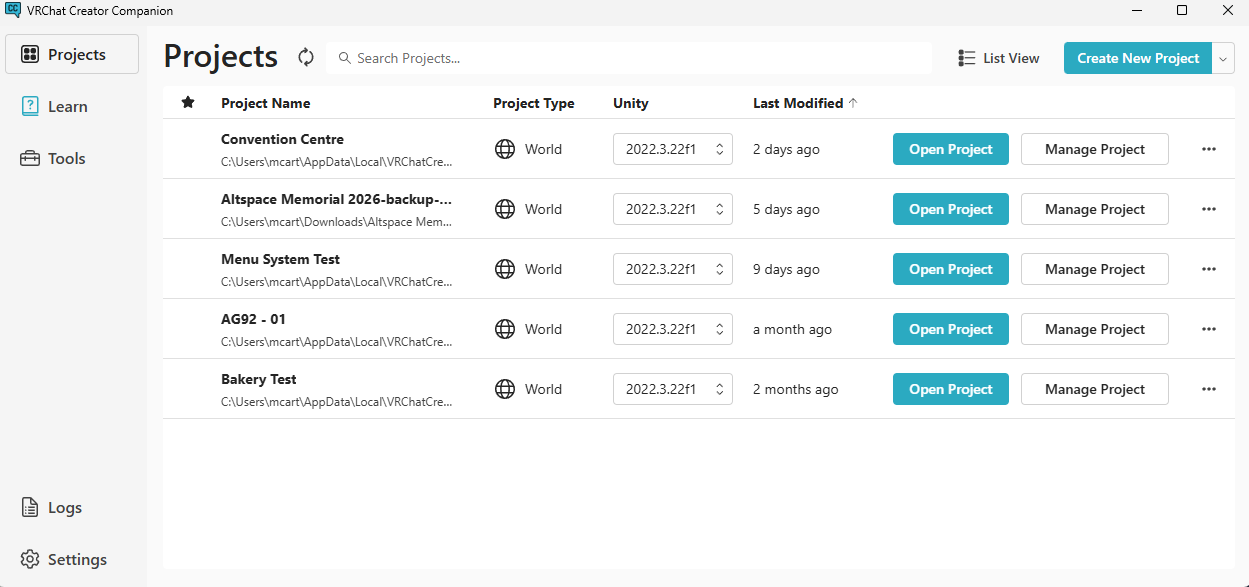
VRChat Creator Companion (VCC) is the safest starting point for modern VRChat world projects. It creates the project, installs the VRChat SDK packages, and gives you one place to manage VRChat-specific dependencies before you begin adding prefabs, Udon systems, or external tools.
Use this page before importing Udon packages, asset packs, or third-party tools. VCC does not replace those tools, but it gives them a cleaner project baseline to land in.
Use VCC as the front door for VRChat world projects instead of manually assembling SDK packages.
- Install VRChat Creator Companion and sign in with your VRChat account.
- Create a new Worlds project from VCC using the recommended Unity version.
- Open Unity from VCC and wait for scripts to finish compiling before editing.
For modern VRChat projects, VCC is the safest package manager. It keeps the Worlds SDK and dependencies aligned so you do not have to manually copy SDK files into Unity.
When To Use This Page
Use this page when you are still at the project setup stage:
- You have not created the world project yet.
- You are not sure which VCC template to choose.
- You want the SDK packages installed before adding assets.
- You want a cleaner baseline before trying Udon tools.
- You want to avoid old manual SDK-import habits.
If the project is already broken, use Fix Your First Broken VRChat Project or Creator Companion Troubleshooting Guide instead.
What You Need
- VRChat account
- Unity Hub installed
- Free Unity license activated in Unity Hub
- Stable internet connection
- Enough disk space for Unity + project files
- A short, local project folder path that is easy to find later
Setup Steps
- Download and install VRChat Creator Companion from VRChat.
- Open VCC and sign into your VRChat account.
- Install the Unity version recommended by your selected world SDK template.
- Choose the project template that matches your goal.
- Create a new project from VCC.
- Confirm the required VRChat packages are installed through VCC.
- Open the project in Unity from VCC.
Choose The Right Template
VCC templates matter because they decide which project baseline you start from.
For beginner world creators:
- Choose World when you want a standard VRChat world project.
- Choose UdonSharp when you know you want to write UdonSharp scripts early.
- Do not choose Avatar for a world project.
If you are not ready to script yet, start with the standard World template. You can still learn Udon later after the basic project, scene, and upload loop are stable.
Why VCC Matters
- Keeps package versions aligned
- Reduces manual SDK mistakes
- Makes project updates easier over time
- Gives imported Udon tools a predictable SDK baseline
- Helps separate VRChat package management from normal Unity asset imports
VCC package management is separate from normal Unity asset importing. That difference matters:
- Official VRChat packages belong in VCC.
- Normal
.unitypackageassets can still be imported through Unity when they are compatible with the project. - Community or user VPM packages should be added deliberately and tested in a small scene.
- Old legacy VRChat SDK imports should not be mixed casually into a VCC-managed project.
VCC And Udon Tools
Many VRChat world tools, including Udon systems and editor helpers, assume your project already has the correct VRChat SDK, Unity version, and package setup. VCC is where you create that baseline.
Use this order when adding tools:
- Create or open the world project in VCC.
- Confirm
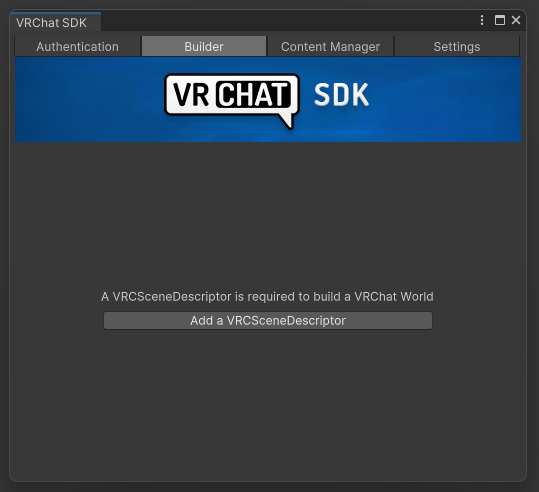
VRChat SDK - Worldsis installed. - Open the project from VCC and wait for Unity to compile.
- Back up or duplicate the project before importing unfamiliar Udon packages.
- Import or install the tool, then test it in a small scene before using it in the main world.
The safer beginner habit is not "never import tools." It is "prove the baseline first, then add one tool at a time."
Good Habits
- Keep project names versioned, for example
MyWorld_v01. - Store all VCC projects in one dedicated folder
- Wait for script compile to finish before editing
- Add one package or tool at a time so problems are easier to trace
- Use VCC backups or your own project copy before testing third-party tools
- Keep the first project local and simple instead of buried deep in synced or temporary folders.
- Open the project through VCC when checking SDK package state.
First Project Check
Before moving to the first-world guide, confirm:
| Area | Check |
|---|---|
| Template | The project was created as a World or UdonSharp project, not Avatar. |
| Unity | VCC opens the supported Unity editor for the project. |
| Packages | The VRChat Worlds package is present in VCC. |
| Console | Unity finishes compiling without red errors. |
| SDK menu | The VRChat SDK menu appears in Unity. |
| Backup | You know how to make a copy or VCC backup before risky imports. |
Once those are true, continue to Your first VRChat world guide.
Common Issues
Help! The project opens but the SDK panel is missing.
Reopen the project from VCC instead of launching it directly from Unity Hub, then confirm the VRChat SDK - Worlds package is installed in the VCC package list.
Dependency errors appeared after an update.
Update packages only through VCC package controls, then restart Unity and let scripts recompile before changing project files or importing more assets.
Should I import Udon tools before or after VCC setup?
Set up the project in VCC first. Once the Worlds SDK is installed and Unity opens cleanly, import Udon tools one at a time and test them in a small scene before committing them to a production world.
Related Guides
- Your first VRChat world guide
- Fix Your First Broken VRChat Project
- Add Your First Interactive Button
- How to Upload a World in VRChat
- World Upload Troubleshooting Checklist
- Setting Up VRChat Creator Companion
Official References
- VRChat Creator Companion Getting Started - reviewed 2026-05-27.
- VRChat Creator Companion FAQ - reviewed 2026-05-27.
- VRChat Creator Companion Packages - reviewed 2026-05-27.
- VRChat SDK Getting Started - reviewed 2026-05-27.
